The student journey

A functional walkthrough of the mobile app — 29 annotated screens, from the first sign-in to full control over one's own data.

SukluAcademy is a mobile learning-support app for secondary school students in Côte d'Ivoire. It extends the classroom: short video lessons, practice exercises, worked solutions for the official textbooks, and a permanent link with the teacher and the family.

This walkthrough presents the app exactly as the student discovers it, screen by screen. Each screenshot comes with what the student sees, the features available, and what that design choice concretely changes for them.

The nine steps follow the order in which a student actually encounters the app: they create an account, discover their dashboard, watch a lesson, practise, check their work, stay motivated, talk to the adults who support them, personalise their profile, then link their family and their school and exercise their rights.

Step 1 Screen 01 / 29

Step 1 3 screens

Creating an account and signing in

First contact with the app. Students sign in with a phone number — the most widely held identifier among Ivorian families — rather than with an email address, which many students do not have.

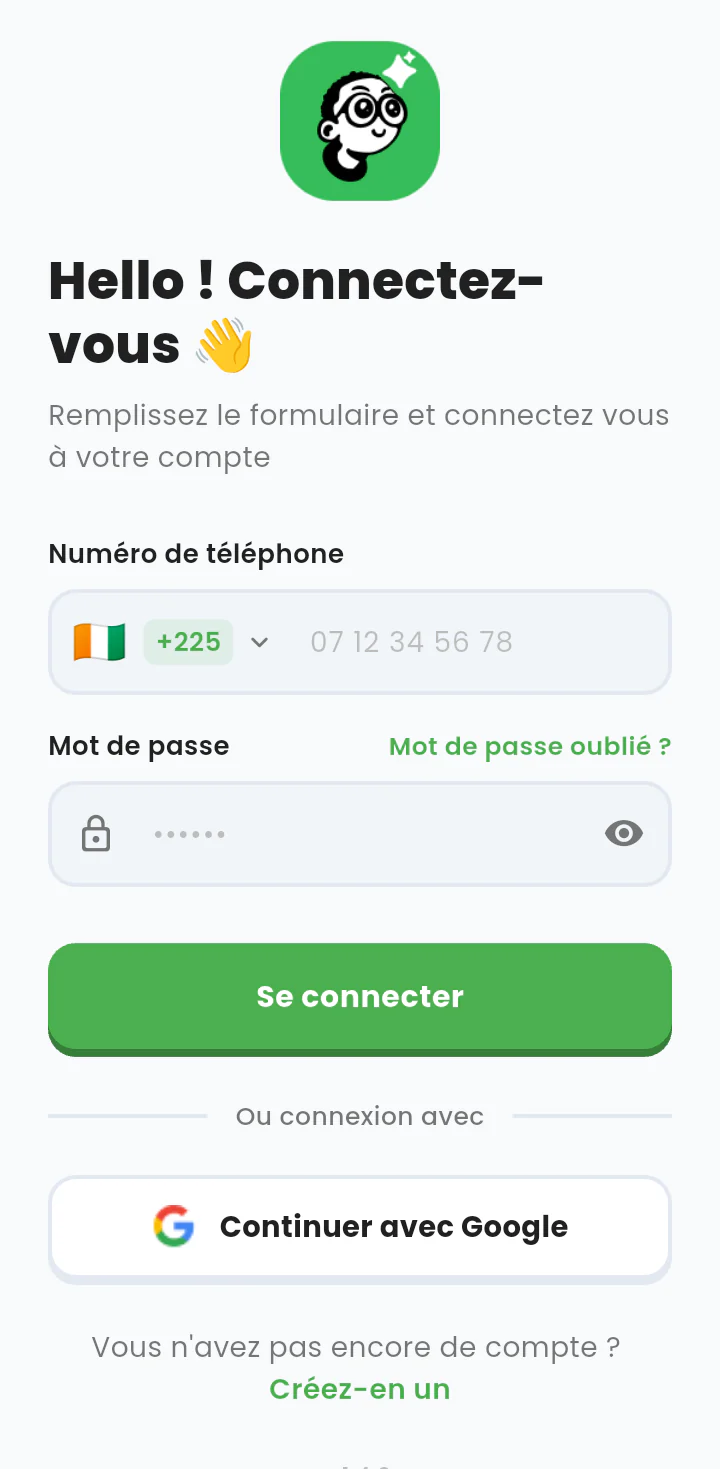
Sign-in screen: a phone number field with the +225 dialling code, a password field and a sign-in button.

1.1 — Sign-in screen

The student opens the app and signs in with a phone number and a password. The country and dialling code (+225, Côte d'Ivoire) are filled in by default.

Available features

  • Sign-in with a phone number and a password
  • One-tap alternative sign-in with a Google account
  • Forgotten-password recovery
  • Option to reveal the password as typed, to avoid typing errors
  • Direct link to account creation

What this changes

Not requiring an email address removes a real barrier: the family phone is enough to open access for the student.
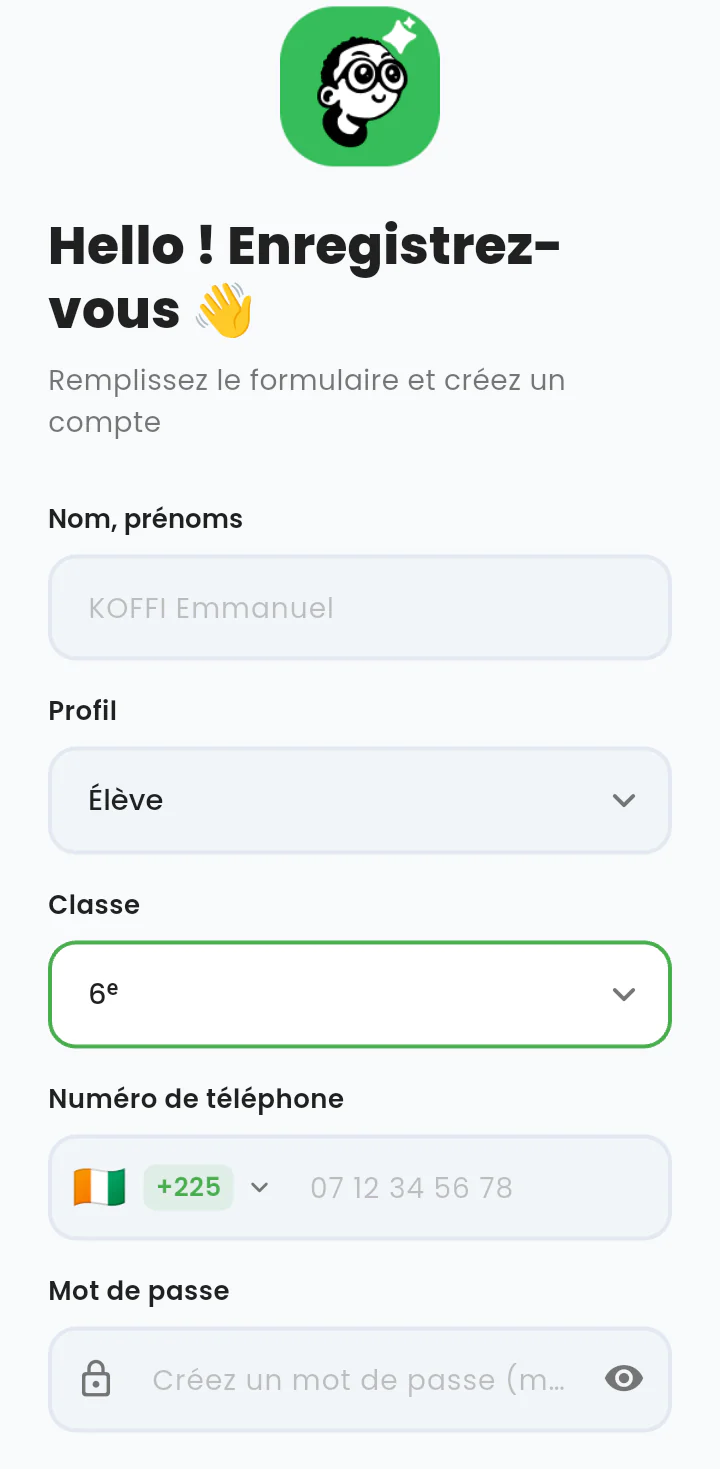
Sign-up form: surname, first names, profile choice, class choice and phone number.

1.2 — Creating an account: identity and class

The sign-up form. The student enters their name, chooses the type of account and, above all, their class.

Available features

  • Entry of surname and first names
  • Choice of profile: Élève (student), but also Parent or Tuteur (tutor), depending on who is signing up
  • Choice of class (here the 6ᵉ, the first year of secondary school)
  • Entry of the phone number with country selection

What this changes

The class chosen here determines everything the student will see afterwards: lessons, exercises, textbooks. Content outside their level is never offered.

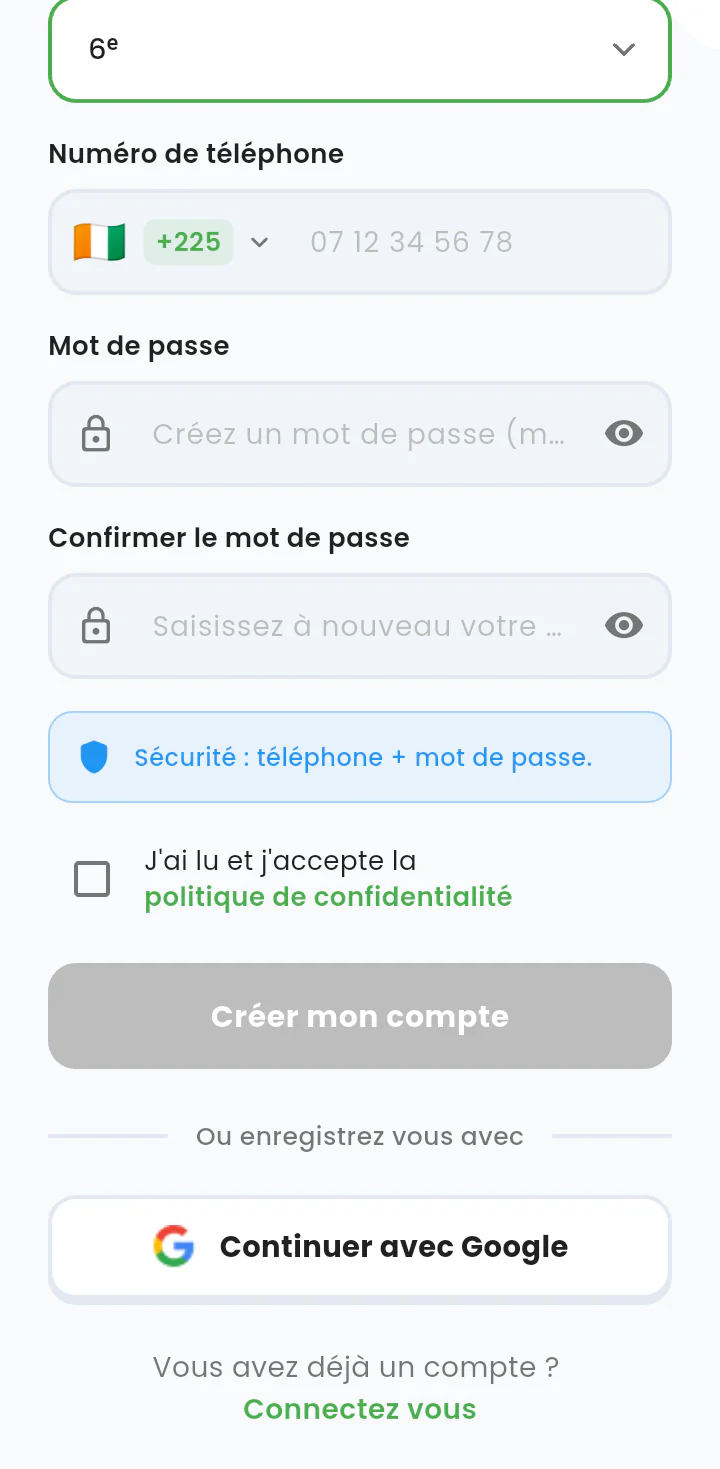
End of the sign-up form: password, confirmation, privacy-policy checkbox and a disabled create-account button.

1.3 — Creating an account: security and consent

The end of the form: password, confirmation, and acceptance of the privacy policy.

Available features

  • Password and password confirmation
  • A visible reminder of the security method in use: phone plus password
  • A privacy-policy acceptance checkbox, with a link to the full text
  • The « Créer mon compte » (create my account) button stays disabled until the box is ticked
  • Alternative sign-up with a Google account

What this changes

Consent is an explicit, blocking prerequisite, not a line of small print at the bottom of the page.

Step 2 2 screens

The home screen, the student's dashboard

The home screen answers a single question: what do I have to do today, and where do I stand?

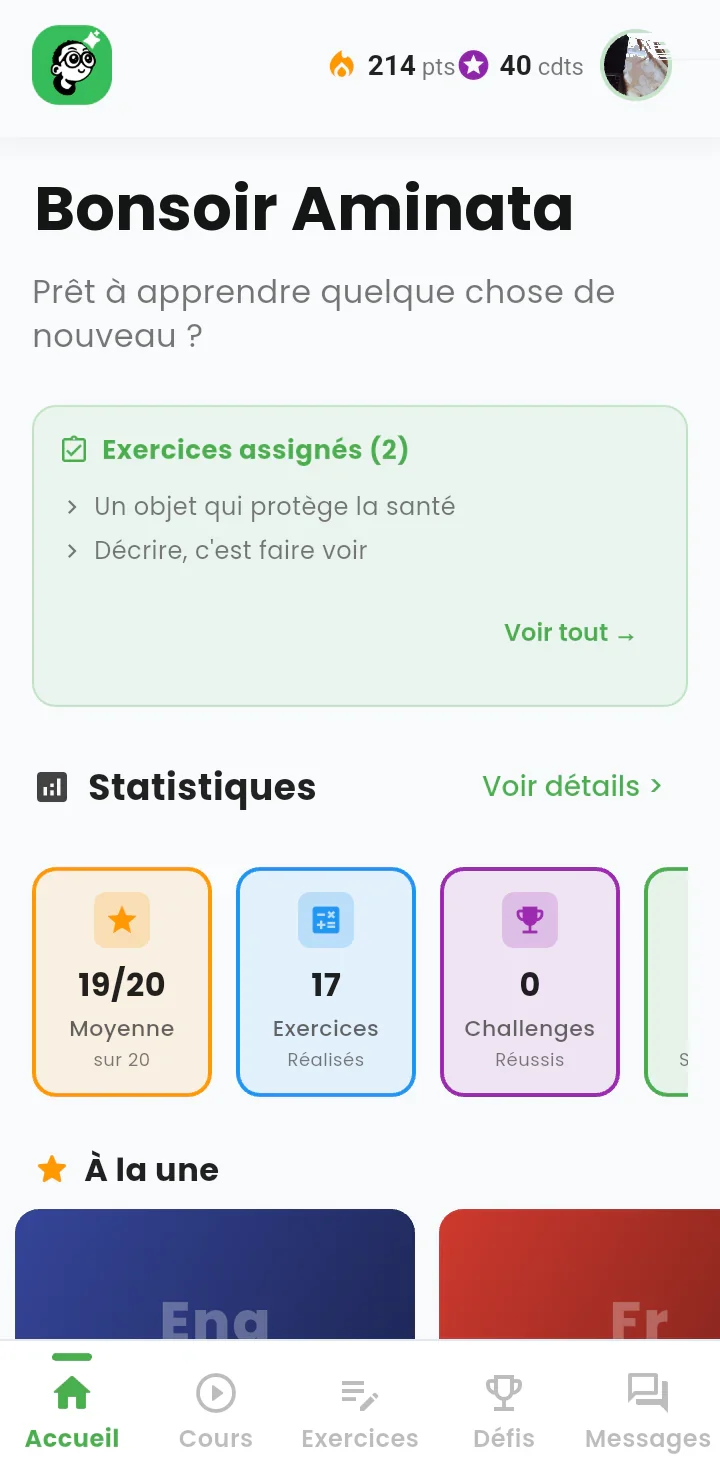
Home screen: personalised greeting, points and credits counters, assigned-exercises panel and statistics block.

2.1 — What I have to do today

A personalised welcome (« Bonsoir Aminata », good evening Aminata), the homework set by the teacher, and the key progress figures.

Available features

  • Points and credits counters permanently visible at the top of the screen
  • Access to the profile through the photo, top right
  • « Exercices assignés » (assigned exercises) panel: the homework sent by the teacher, with direct access
  • « Statistiques » (statistics) block: average out of 20, exercises completed, challenges won, current streak
  • A permanent five-item navigation bar: home, lessons, exercises, challenges, messages

What this changes

On a single screen, the student sees the work to be done and how far they have come. No searching is required.

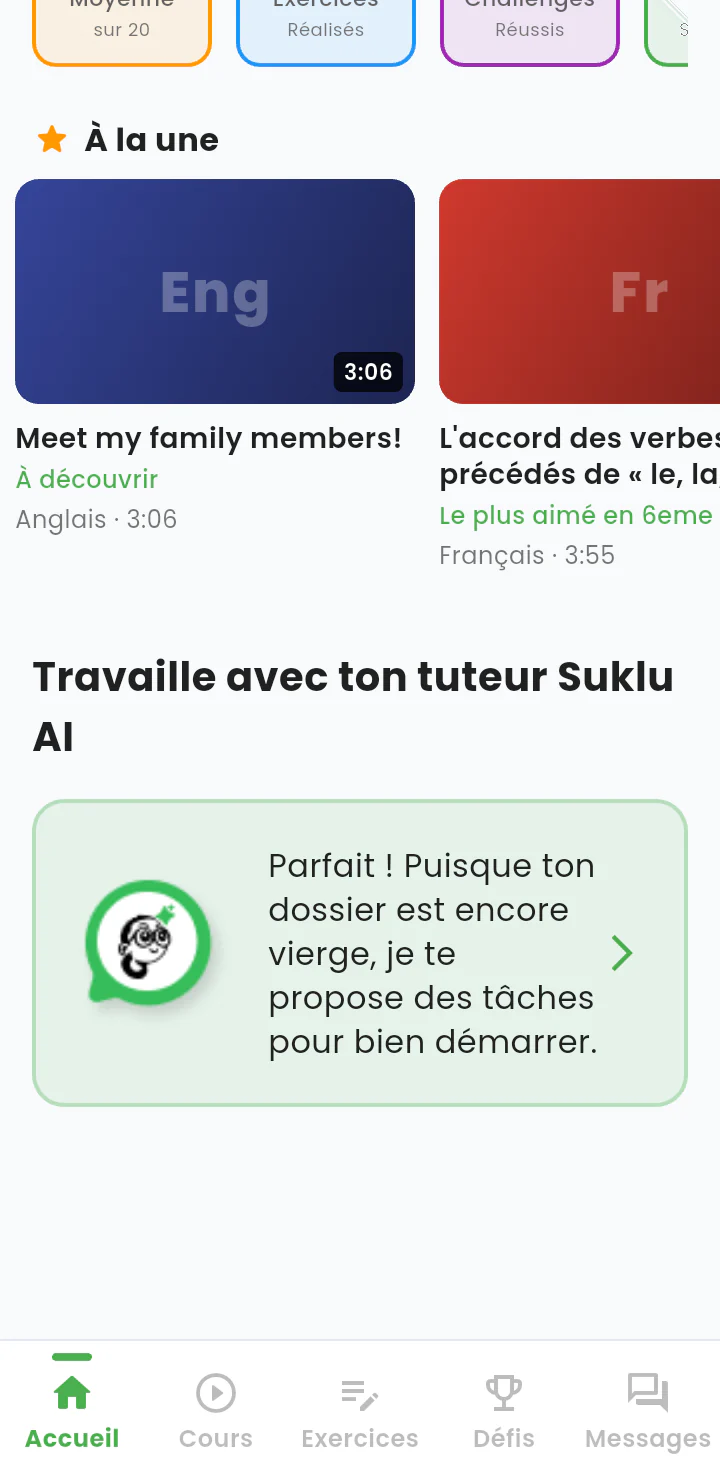
Lower part of the home screen: a carousel of recommended lessons and a card leading to the Suklu AI tutor.

2.2 — Recommendations and the AI tutor

Further down the home screen: featured lessons, then the entry point to the « Suklu AI » tutor.

Available features

  • « À la une » (featured) carousel: recommended video lessons with subject, duration and the reason for the recommendation (« À découvrir », worth discovering; « Le plus aimé en 6ᵉ », the most liked in 6ᵉ)
  • Access to the Suklu AI tutor, which addresses the student directly
  • The tutor adapts its suggestions to the student's history: here it notes an empty record and proposes tasks to get started

What this changes

Two complementary answers for a student who does not know where to begin: an editorial selection and conversational support.

Step 3 2 screens

Video lessons

Lessons are short videos, three to five minutes long, organised by subject and by chapter according to the official curriculum.

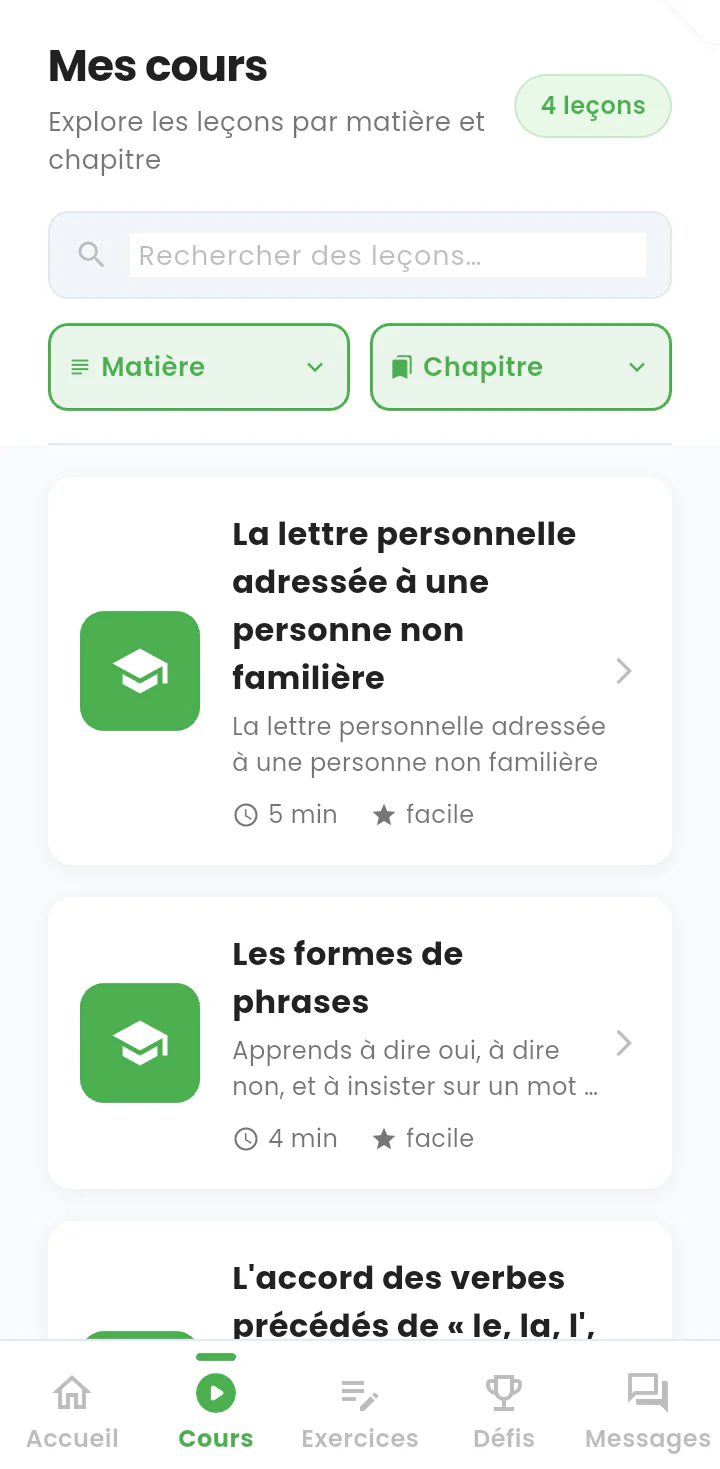
Lesson catalogue: search bar, subject filters and a list of lessons with duration and difficulty.

3.1 — The lesson catalogue

The student's course library, filterable and freely browsable.

Available features

  • Keyword search across the lessons
  • Filters by subject and by chapter
  • Every lesson states its duration (4 to 5 minutes) and its difficulty level
  • A counter of the lessons available for the student's year

What this changes

The short format suits limited connections and study time broken into small slots, often in the evening after school.

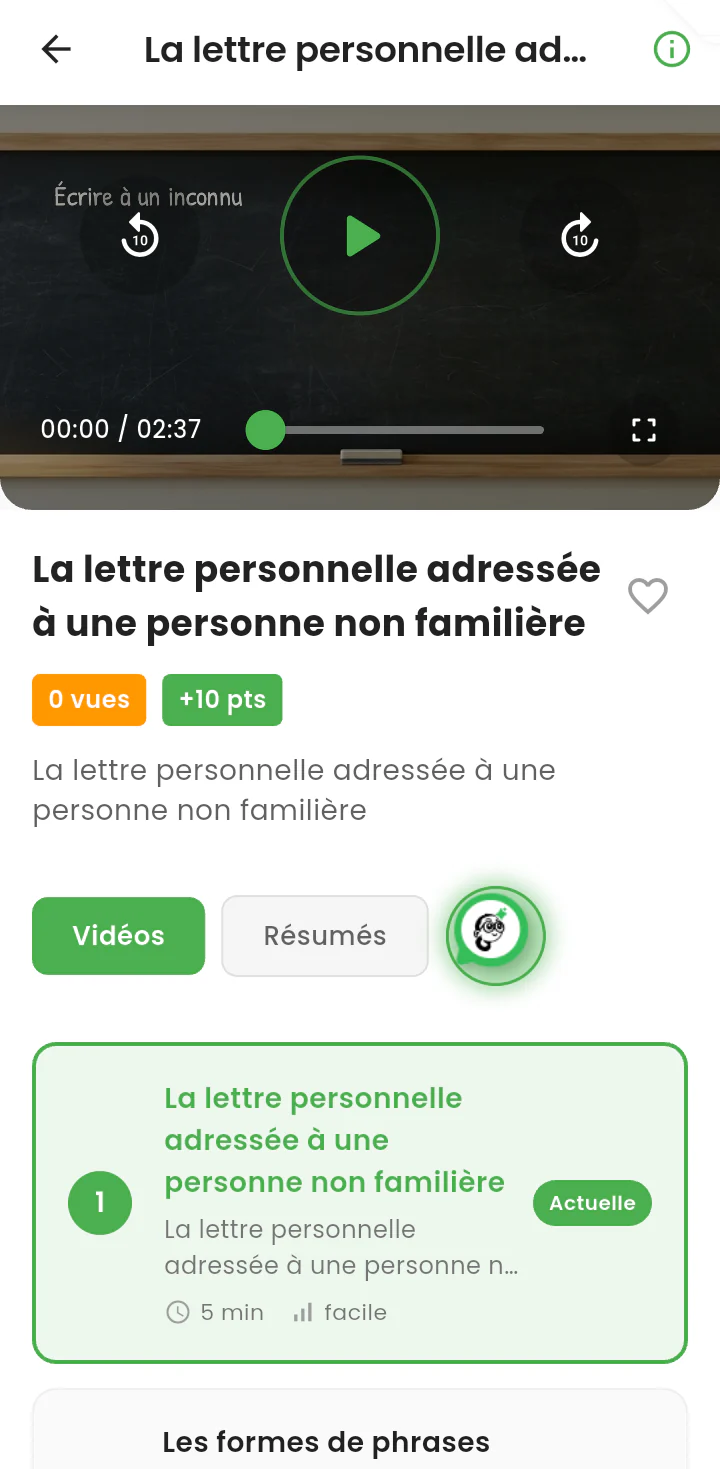
A video lesson playing: player, points earned, video and summary tabs, and the chapter's lesson list.

3.2 — Watching a lesson

A lesson being watched, with the video and everything around it.

Available features

  • Video player with 10-second skip forward and back, full screen and a progress bar
  • Points earned for watching the lesson (+10 points)
  • View counter and a favourite toggle
  • Three ways into the same content: videos, written summaries, and the AI assistant
  • The chapter's lesson list, with the current one marked « Actuelle » so the student can move on

What this changes

The same notion is available as a video, as a written summary and as a conversation with the assistant: three doors for three ways of learning.

Step 4 6 screens

Practising: exercises and quizzes

Practice is the heart of the app. Every exercise states its duration, its marking scheme and the skill it builds before the student starts.

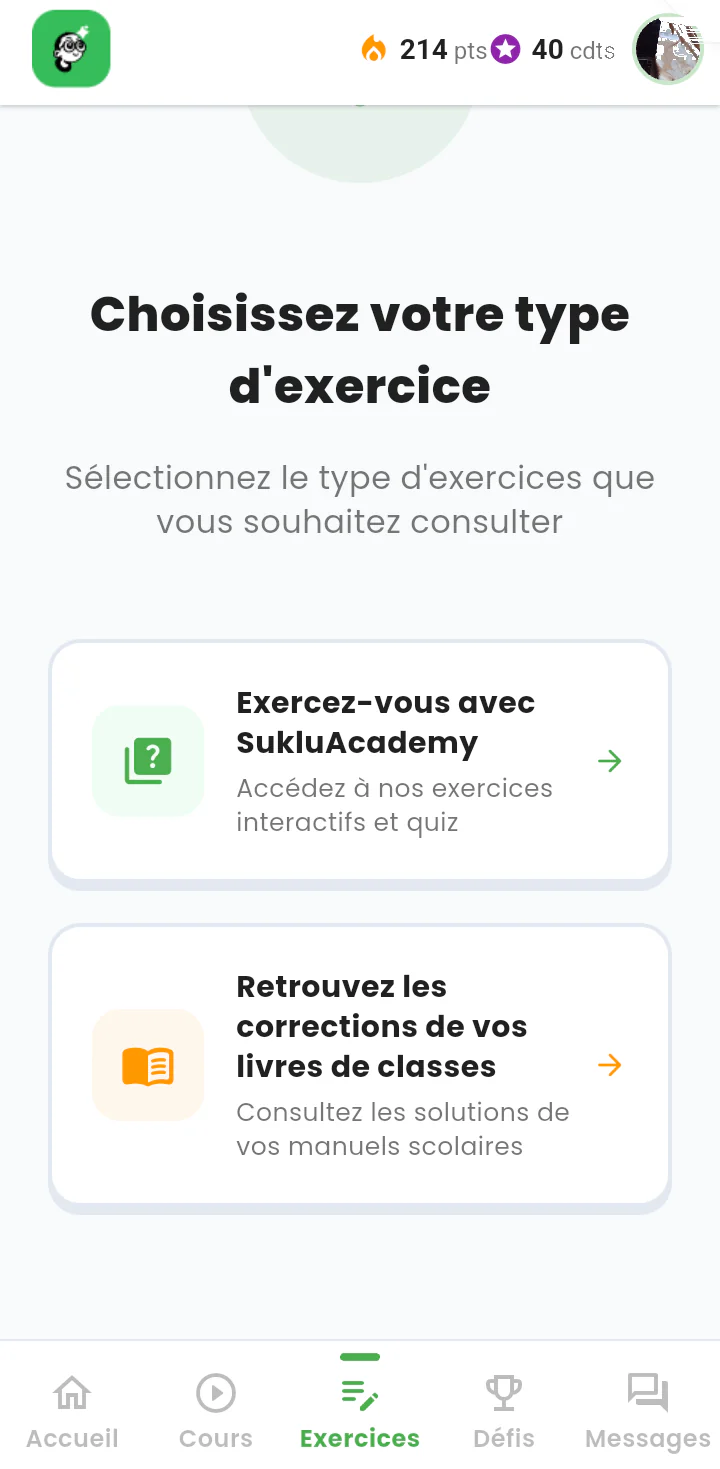
A choice screen between the platform's own exercises and the worked solutions for classroom textbooks.

4.1 — Two ways to practise

The choice offered to the student on opening the exercises tab.

Available features

  • « Exercez-vous avec SukluAcademy » (practise with SukluAcademy): interactive exercises and quizzes produced by the platform
  • « Retrouvez les corrections de vos livres de classe » (find the solutions to your classroom books): worked solutions for the official textbooks

What this changes

The app does not replace the student's textbook: it builds on it and extends it.

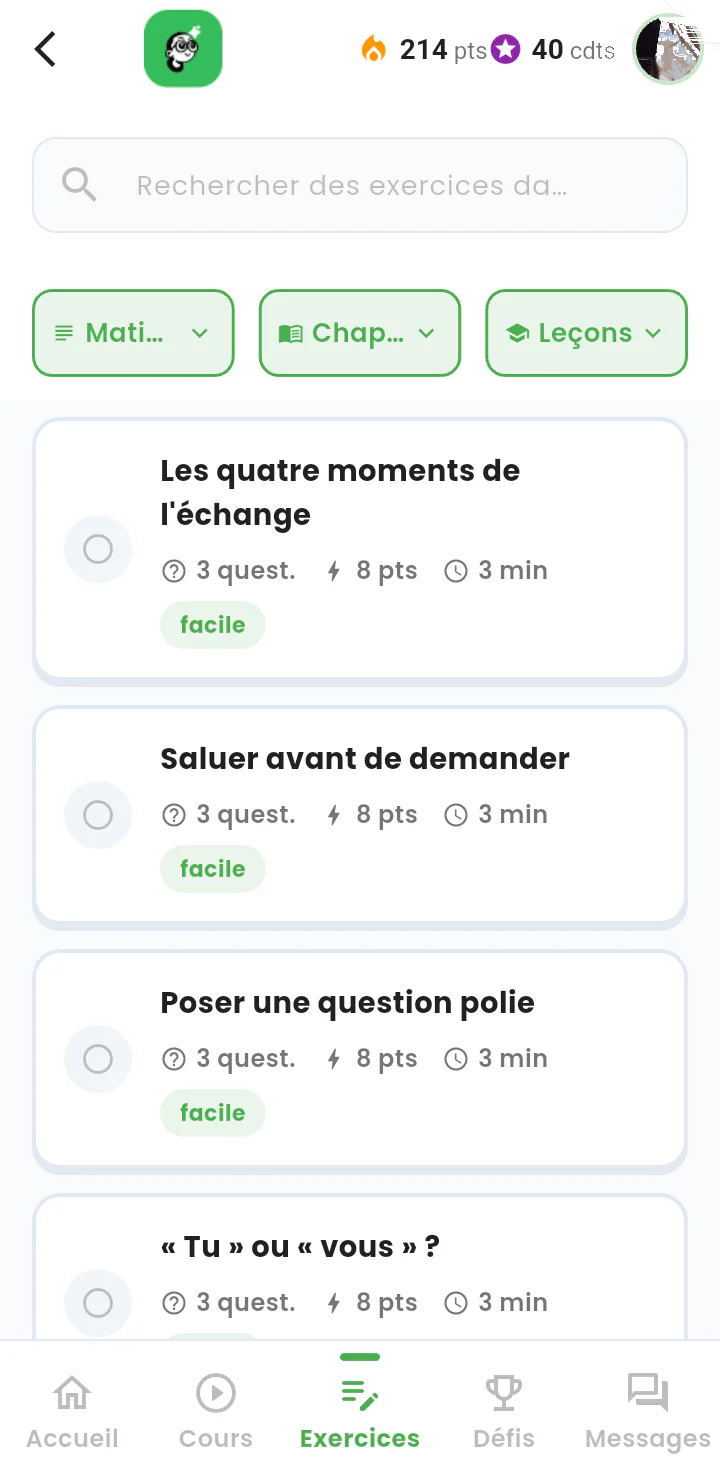
Exercise catalogue: filters and exercise cards showing questions, points, duration and difficulty.

4.2 — The exercise catalogue

The list of available exercises, with everything worth knowing before starting.

Available features

  • Keyword search
  • Filters by subject, by chapter and by lesson
  • For each exercise: number of questions, points at stake, estimated duration and difficulty
  • A tracking dot showing whether the exercise has already been attempted

What this changes

The student chooses with full knowledge of what is involved, even when only a few minutes are available.

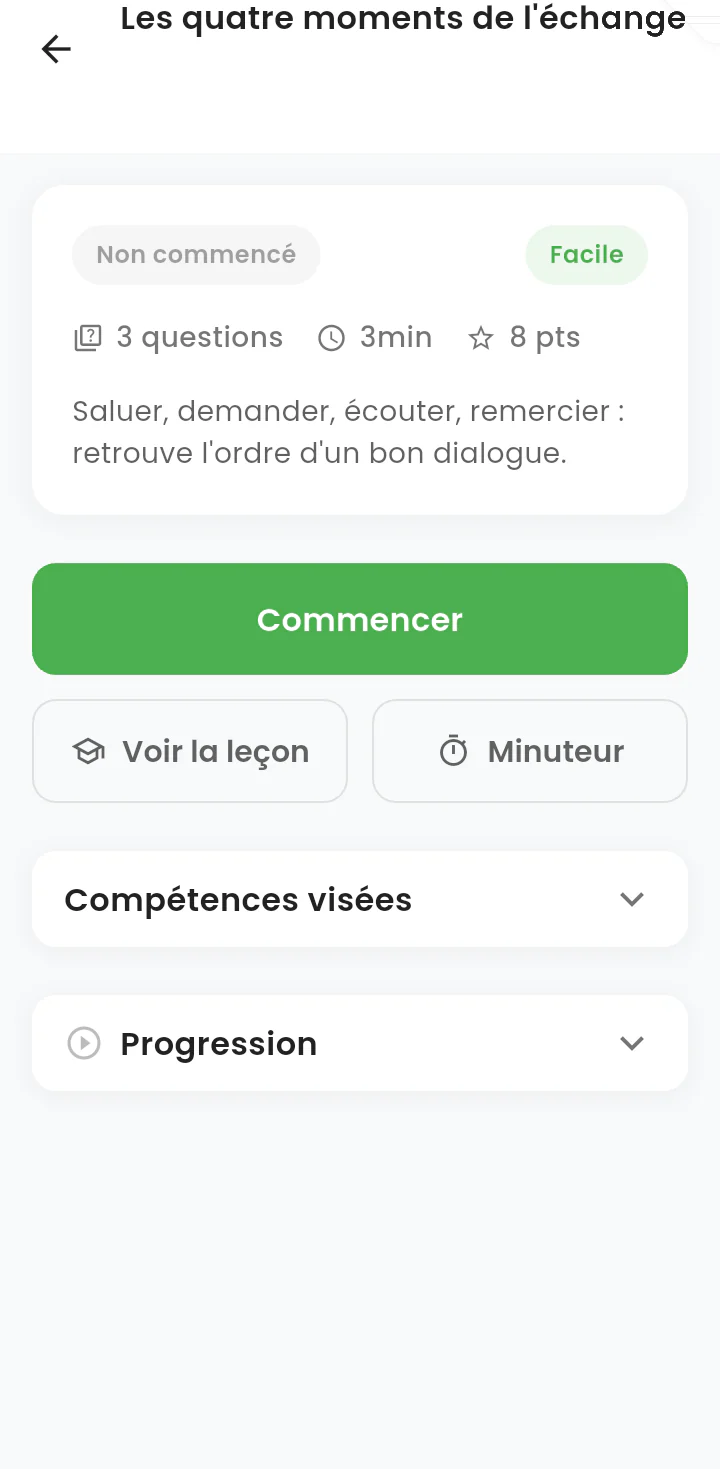
Exercise briefing: status, difficulty, number of questions, duration, points and a start button.

4.3 — An exercise briefing

Before starting, the student sees the situation described and the conditions of the exercise.

Available features

  • Exercise status (« Non commencé », not started) and difficulty level
  • The format announced: 3 questions, 3 minutes, 8 points
  • A « Commencer » (start) button
  • « Voir la leçon » (see the lesson): an immediate return to the matching lesson
  • « Minuteur » (timer): timed practice, switched on at the student's choice
  • Expandable « Compétences visées » (target skills) and « Progression » sections

What this changes

The direct link back to the lesson makes it possible to revise before answering, rather than failing and then giving up.

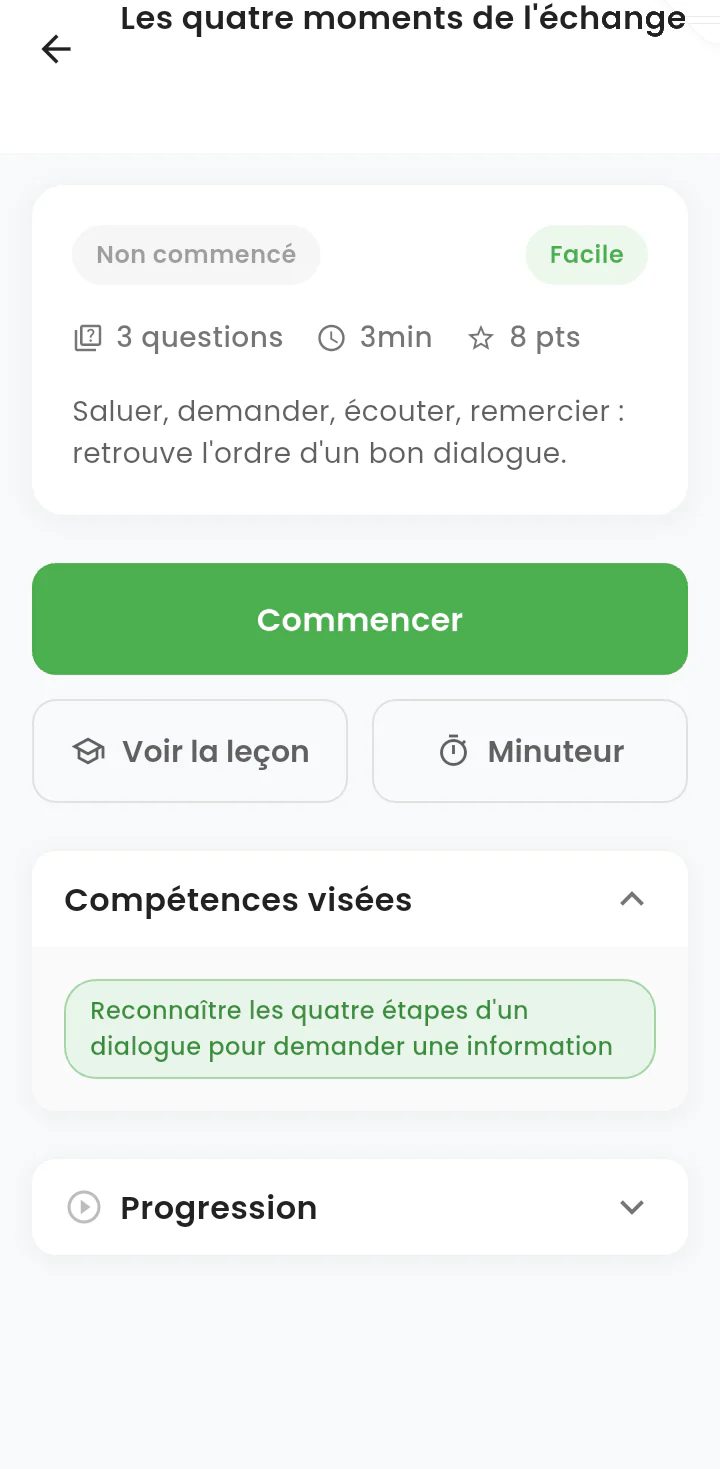
Exercise briefing with the target-skills section expanded, stating the skill being practised.

4.4 — The target skills

The same briefing with the « Compétences visées » (target skills) section expanded: the teaching objective is stated in plain words.

Available features

  • An explicit statement of the skill being practised: « Reconnaître les quatre étapes d'un dialogue pour demander une information » (recognising the four stages of a dialogue used to ask for information)

What this changes

The student knows what they are working on, not only what they have to answer. Teachers and families can tie each exercise back to the curriculum.

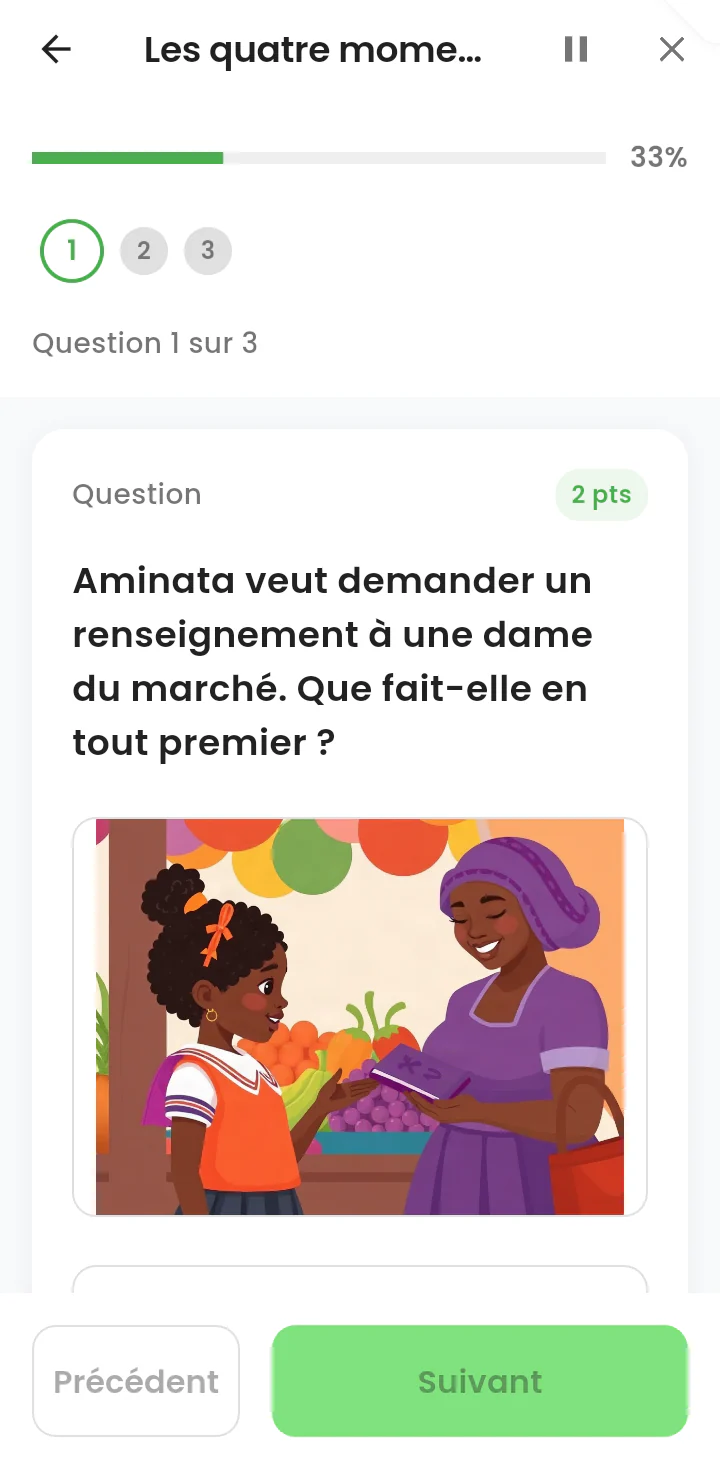
An illustrated quiz question: progress bar, question numbers, marks and navigation buttons.

4.5 — Taking the quiz

A question in progress. The student is on the first of three questions, that is 33% of the way through.

Available features

  • A progress bar and clickable question numbers
  • A question set in a real situation, with an illustration
  • The marks shown for each question (2 points)
  • « Précédent » and « Suivant » (previous and next) navigation
  • The quiz can be paused or left at any moment

What this changes

The situations and illustrations are rooted in West African daily life — the market, the first names, the school uniforms. The instruction is immediately readable for the student, with no cultural transposition needed.

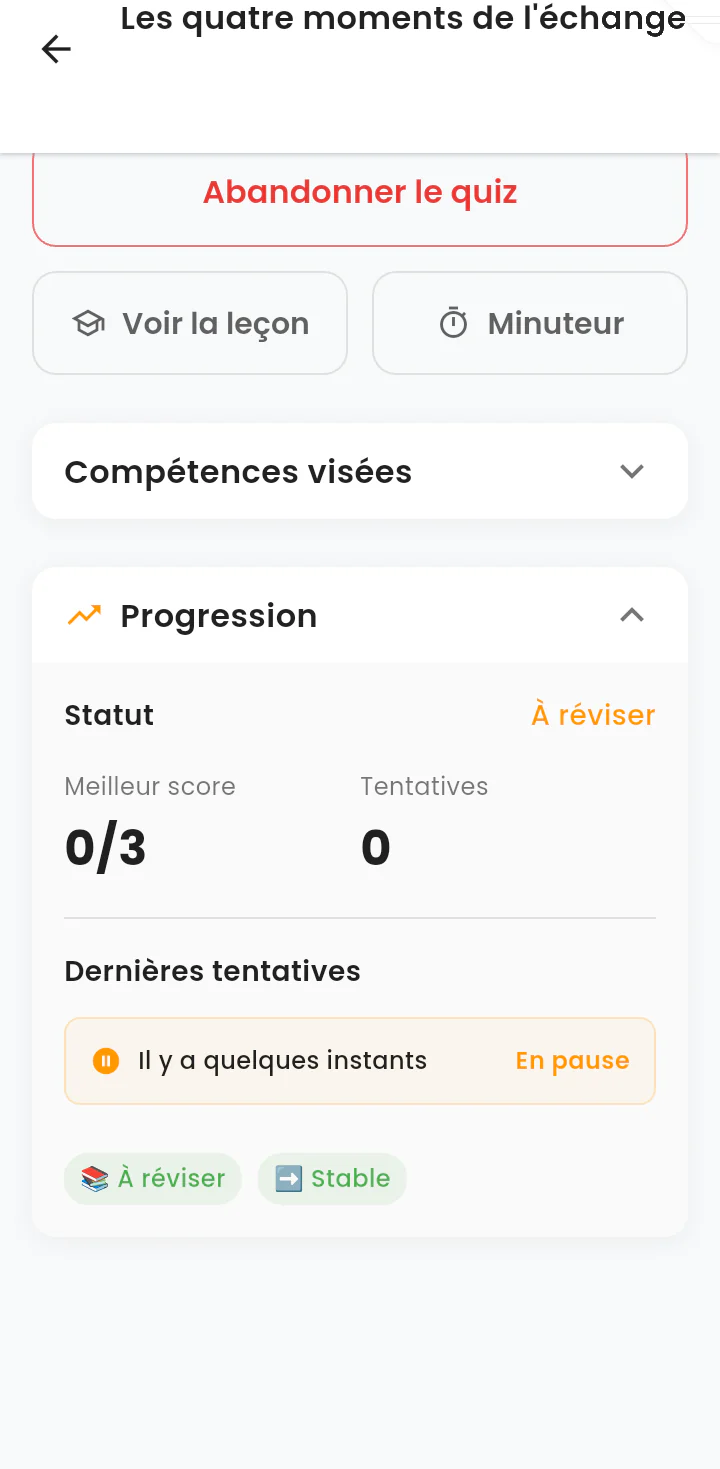
Exercise resume screen: best score, number of attempts, attempt history and a trend indicator.

4.6 — Resuming and tracking progress

The exercise has been paused. The app keeps its state and reports on the work already done.

Available features

  • Resuming an interrupted quiz, or abandoning it explicitly
  • Best score achieved and number of attempts
  • Revision status: « À réviser » (to be revised)
  • A history of recent attempts, with their status
  • A trend indicator: « Stable »

What this changes

The app remembers the student's work and rewards coming back to it, rather than punishing a single mark.

Step 5 3 screens

Worked solutions for classroom textbooks

A distinctive feature: worked solutions for the official textbooks, explained on video and in writing, organised exactly like the student's printed book.

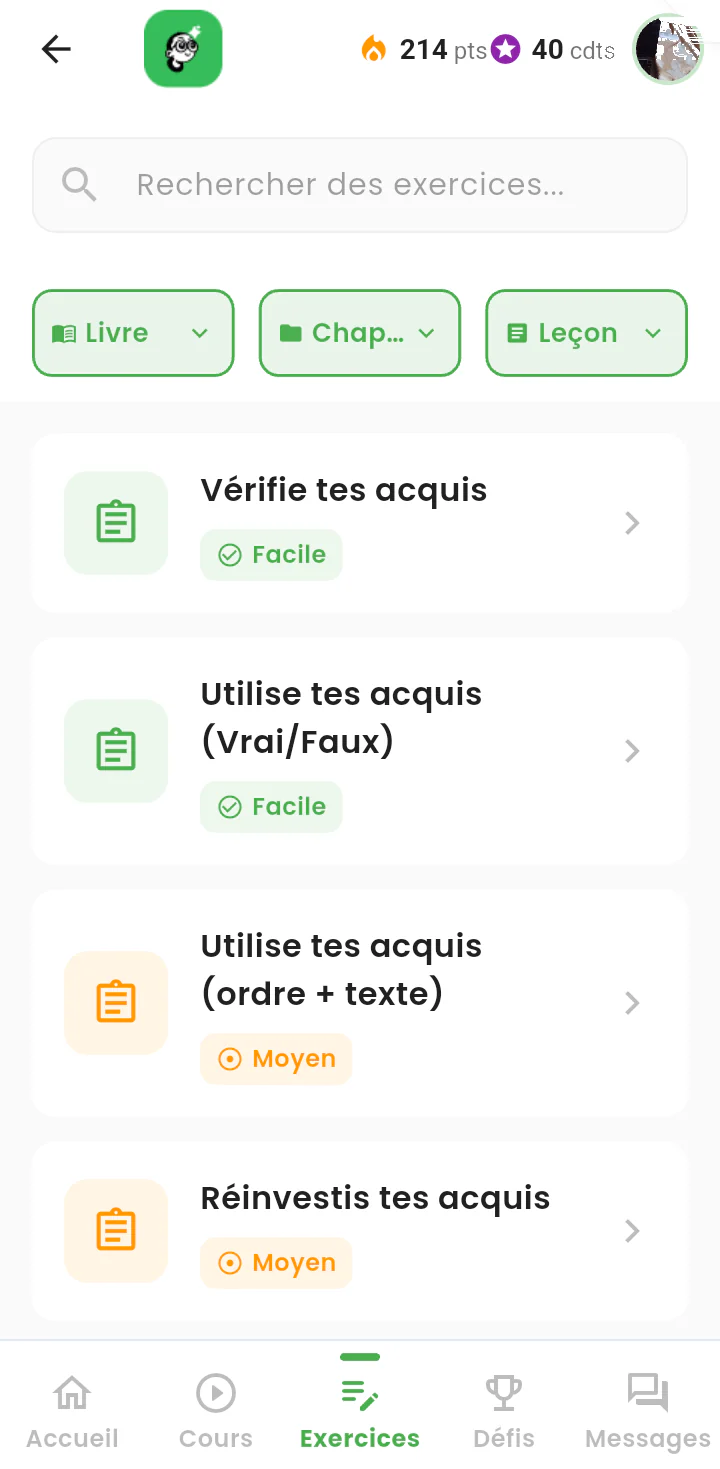
List of exercises from a school textbook, with filters by book, chapter and lesson, and a difficulty level.

5.1 — Solutions, textbook by textbook

The list of exercises from the textbook, under their original headings.

Available features

  • Filters by book, by chapter and by lesson
  • Exercises keep the textbook's own titles: « Vérifie tes acquis », « Utilise tes acquis », « Réinvestis tes acquis » (check, apply and reinvest what you have learnt)
  • A difficulty level shown for each one
  • Keyword search

What this changes

The student finds the structure of the printed book again: no mental mapping is needed between the two media.

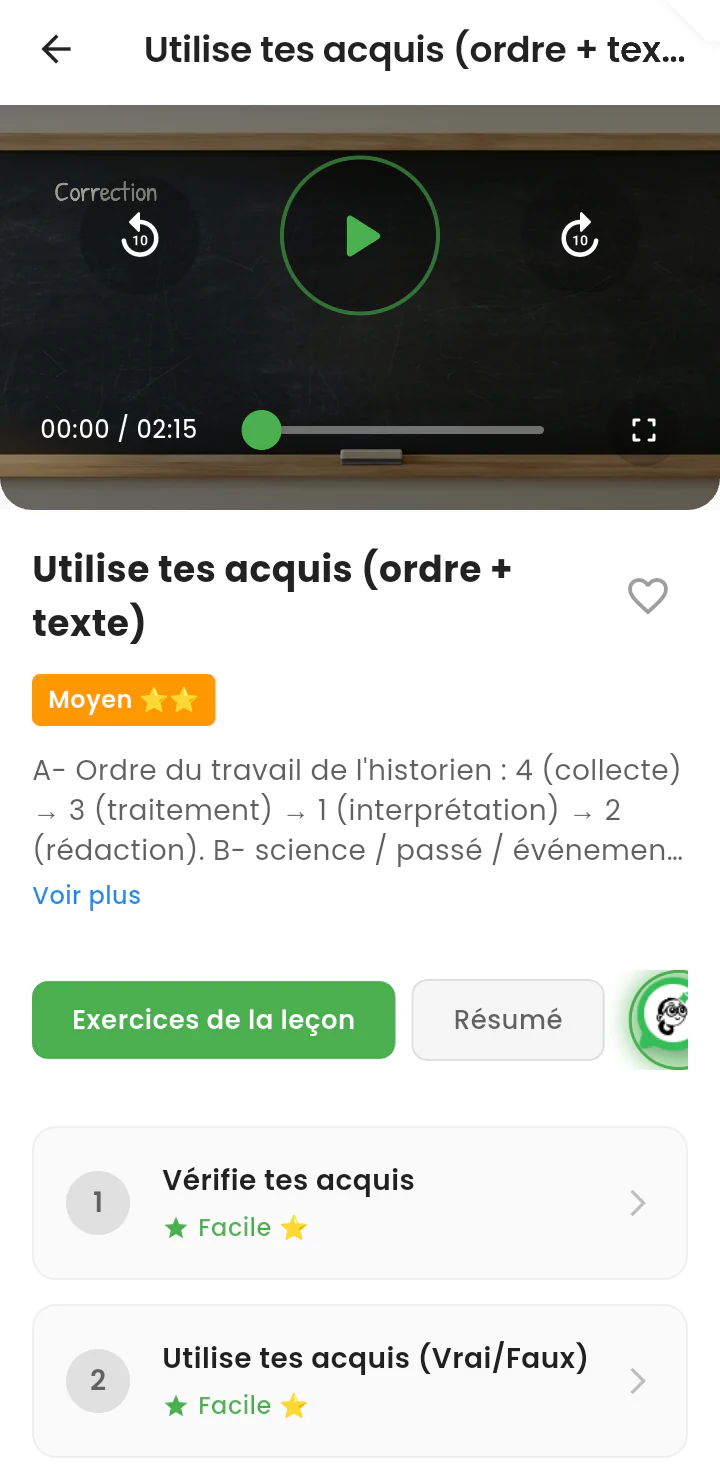
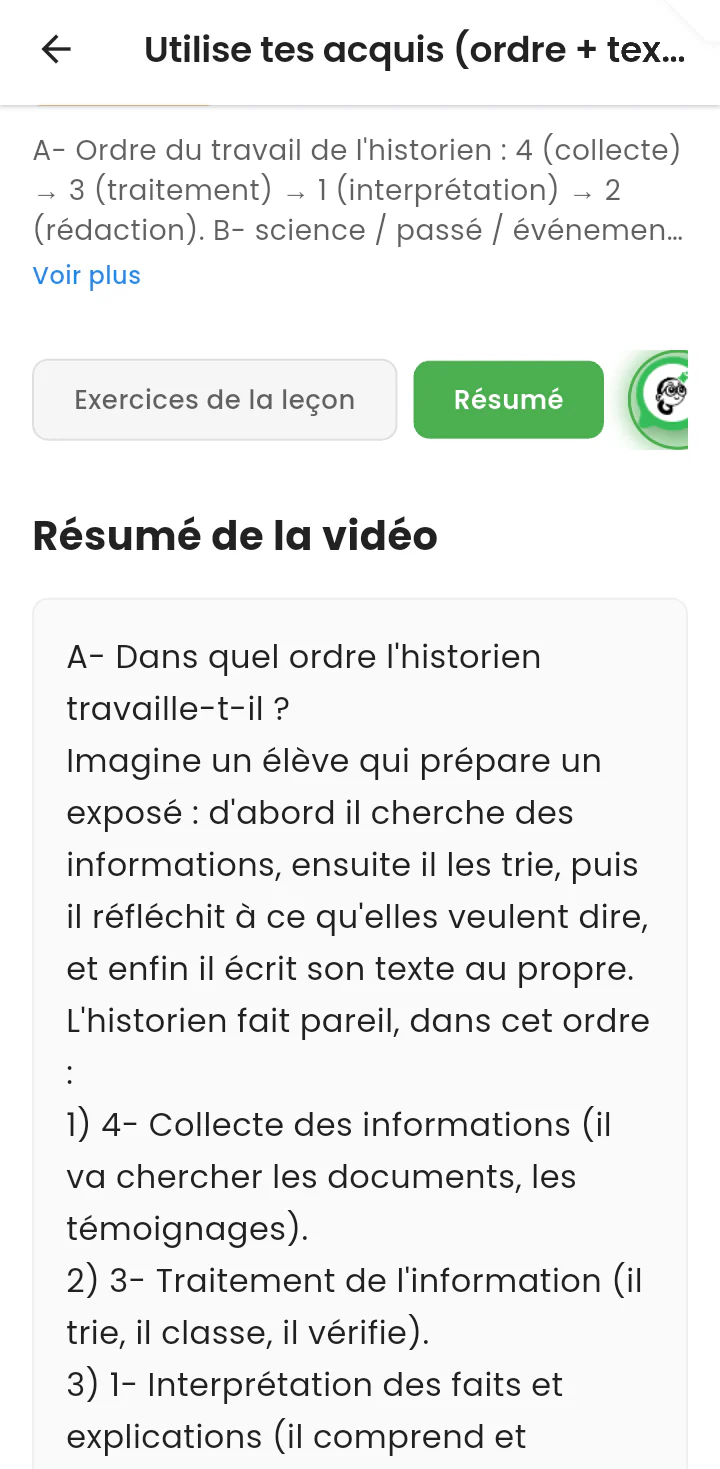
An exercise solution on video, with the summarised answer and the list of the lesson's other exercises.

5.2 — A solution explained on video

The solution to a textbook exercise, on video, with the answer summarised just below.

Available features

  • A solution video and the difficulty level
  • A short written answer shown under the video, with a « Voir plus » (see more) link
  • « Exercices de la leçon » (exercises for this lesson) and « Résumé » (summary) buttons, plus the AI assistant
  • A numbered list of the other exercises in the same lesson

What this changes

This is an explained solution, not an answer to copy out: the reasoning is worked through.

A written exercise solution, with an introductory analogy and numbered reasoning steps.

5.3 — The written solution

The same solution, written out in full, step by step.

Available features

  • A detailed written version of the video
  • An explanation built on a familiar analogy (« imagine a student preparing a presentation… ») before the answer itself
  • Numbered reasoning steps

What this changes

It can be read without using video data, and suits the student who prefers writing or who is revising quickly before a test.

Step 6 2 screens

Staying motivated: challenges, streak and badges

The motivation mechanics reward regularity rather than one-off performance.

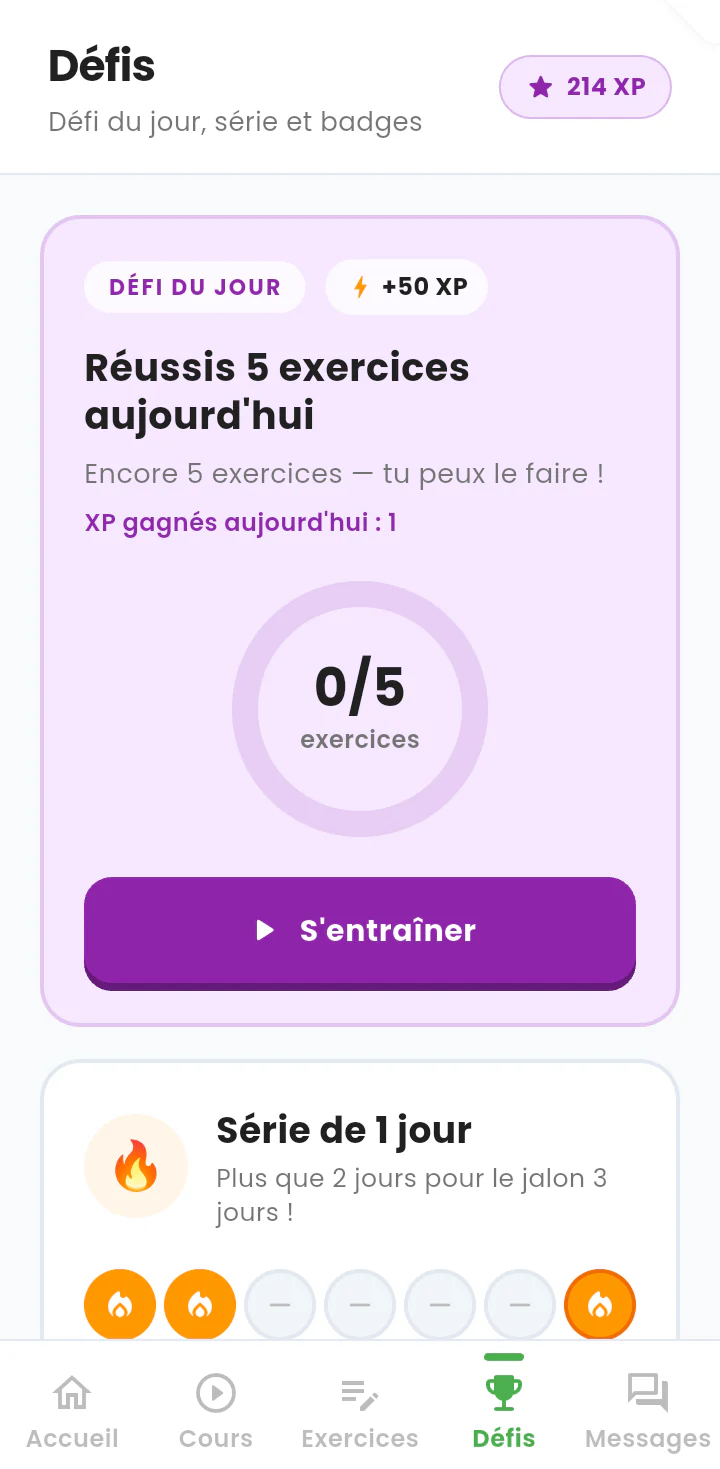
Daily challenge screen: a numbered goal, an XP reward and a circular progress gauge.

6.1 — The daily challenge

A single daily goal, expressed as a number, with its reward announced up front.

Available features

  • The goal of the day: « Réussis 5 exercices aujourd'hui » (complete 5 exercises today)
  • The announced reward: +50 XP
  • A circular progress gauge (0 / 5)
  • A counter of the XP earned during the day
  • An « S'entraîner » (practise) button leading straight to the exercises

What this changes

One achievable goal per day, phrased as encouragement (« tu peux le faire ! », you can do it), rather than as a demand for performance.

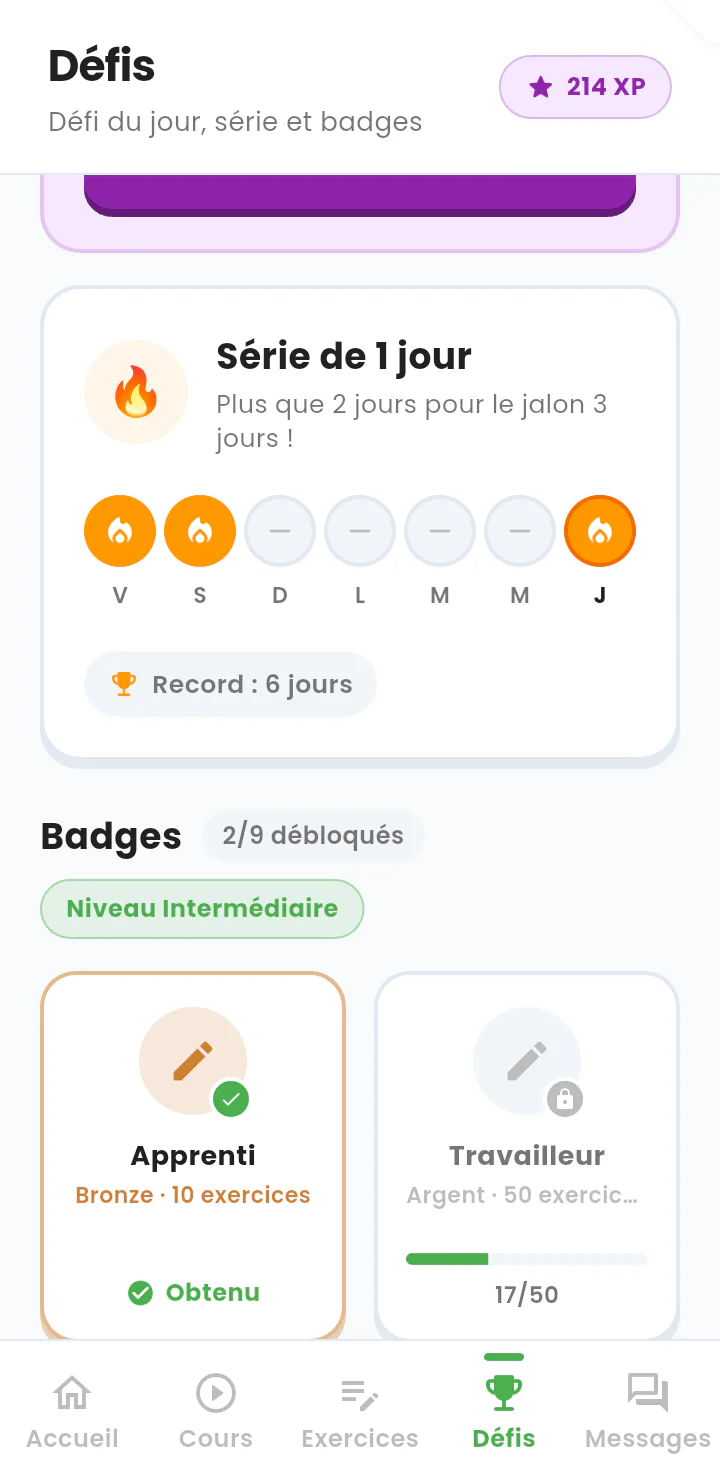
Streak and badges screen: the week's calendar, the personal record and the badge collection.

6.2 — The streak and the badges

How regular the student has been over the week, and their badge collection.

Available features

  • A streak of consecutive working days, with the week's calendar
  • The next milestone announced (3 days)
  • The personal record kept on display (6 days)
  • A badge collection: 2 of 9 unlocked, in bronze then silver tiers
  • A progress bar towards the next badge (17 exercises out of the 50 required)

What this changes

It is the frequency of work that is rewarded. The personal record is the only point of comparison: there is no ranking between students.

Step 7 1 screen

Talking with the teacher and the family

A closed messaging space, limited to the adults responsible for the student.
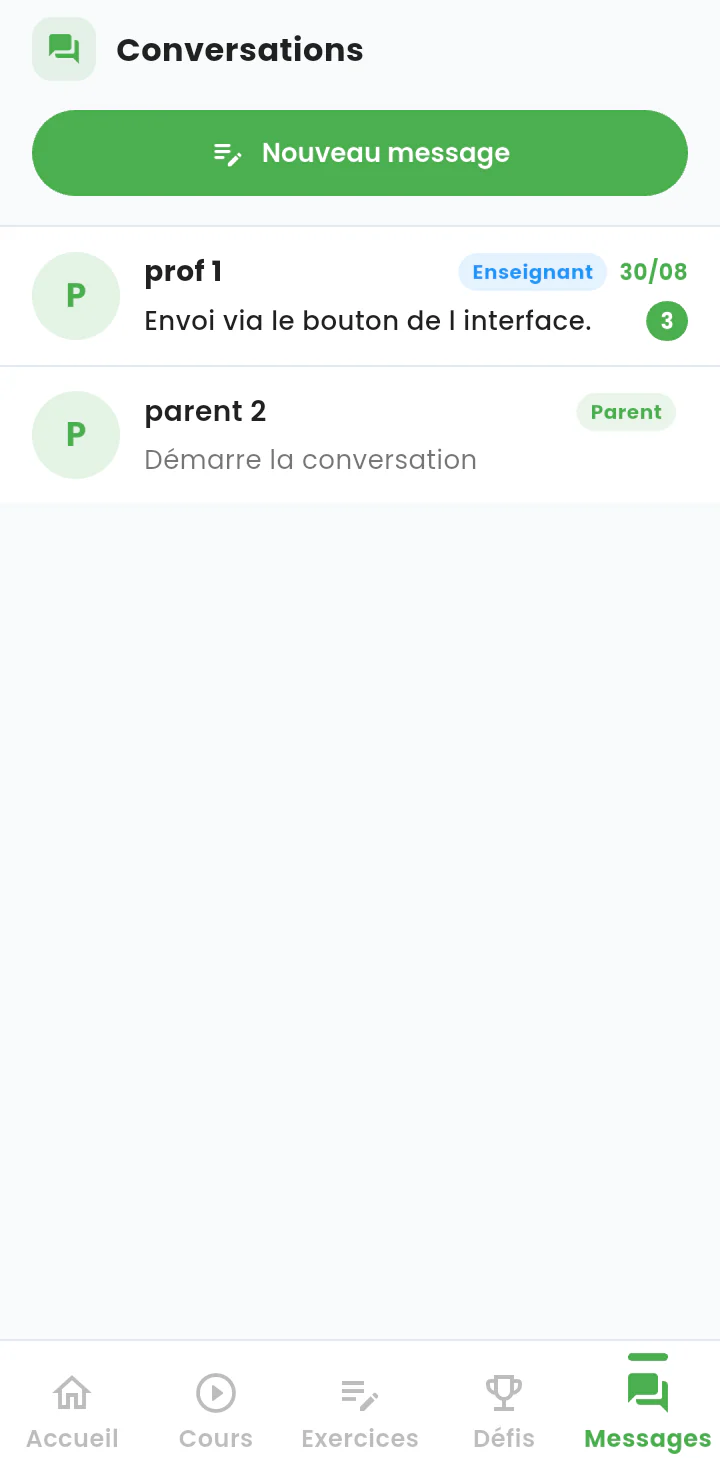
The student's conversation list, with each correspondent's role and an unread-message counter.

7.1 — Messaging

The student's conversations: here, their teacher and a parent.

Available features

  • A list of conversations, with the latest message received
  • The role of each correspondent displayed: « Enseignant » (teacher), « Parent »
  • An unread-message counter
  • A « Nouveau message » (new message) button

What this changes

The student can only write to identified adults linked to their account. There is no open messaging between students, which removes the risk of peer harassment on the platform.

Step 8 6 screens

Profile, credits and personalisation

Students get a complete view of their account: what they have earned, what they have left, and what they want to work on.

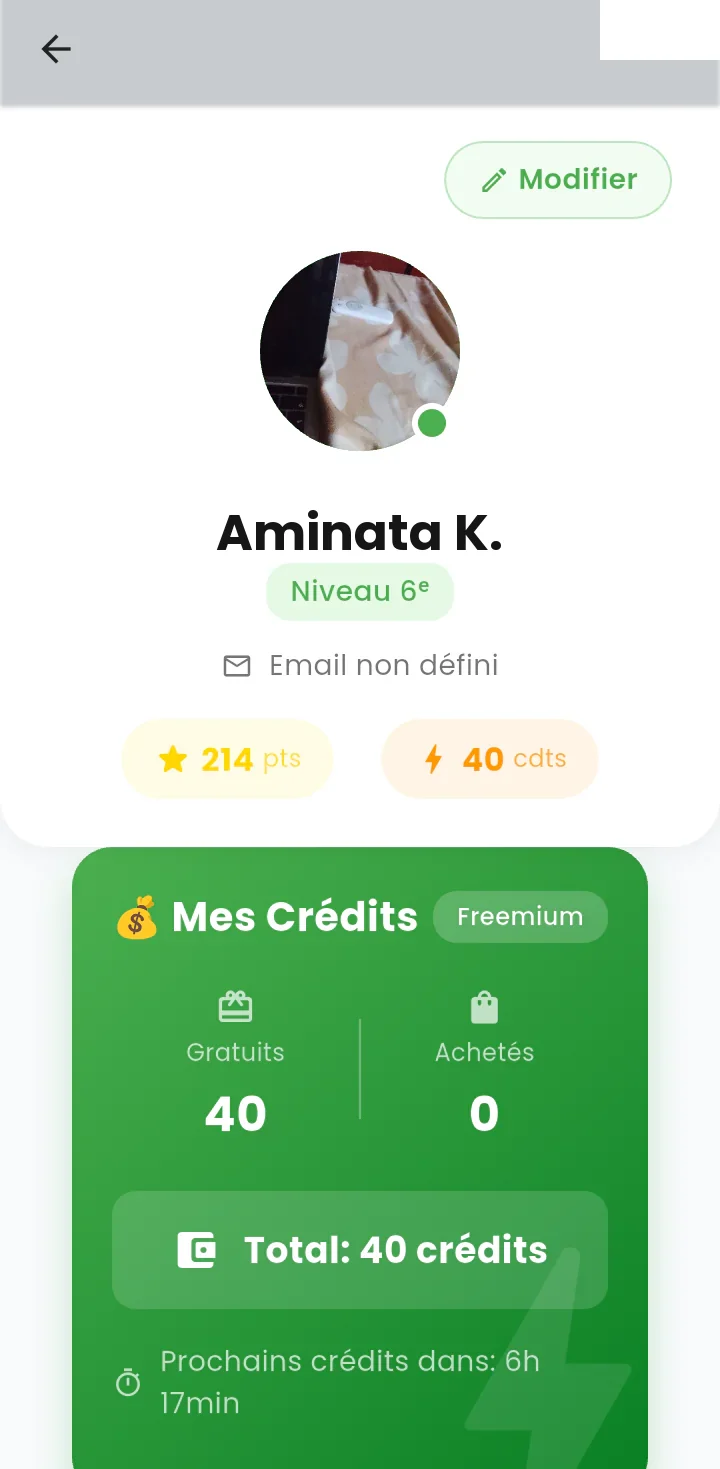
Profile page: photo, school year, point totals and the credits panel with its countdown.

8.1 — The profile

The student's personal page, with their credit wallet.

Available features

  • Photo, name, school year and a presence indicator
  • Point and credit totals
  • A « Mes Crédits » (my credits) panel: free credits shown separately from other credits
  • A countdown to the next free allowance (« Prochains crédits dans : 6 h 17 min », next credits in 6 h 17 min)

What this changes

The free access model replenishes itself automatically. A student keeps using the service for free, with no interruption and nothing to apply for.

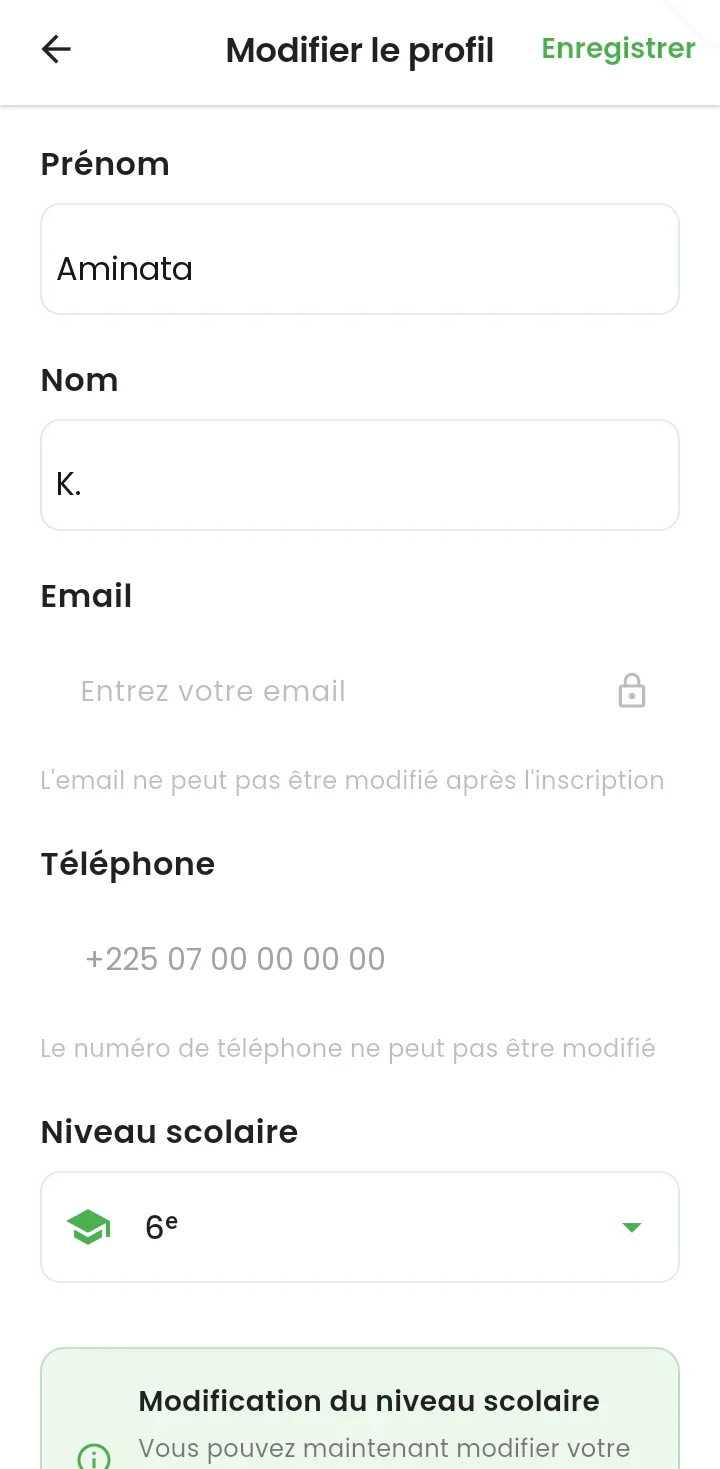
Profile editing screen: editable name fields, locked email and phone fields.

8.2 — Editing the profile

The editing screen, where some information is deliberately locked.

Available features

  • First name and surname can be changed
  • Email address and phone number are locked after sign-up, with the reason shown under each field
  • The school year can be changed, with a warning about the effects
  • Changes have to be saved explicitly

What this changes

Sign-in credentials are protected against accidental changes, while the student keeps control of their year group — essential at every move up a class.

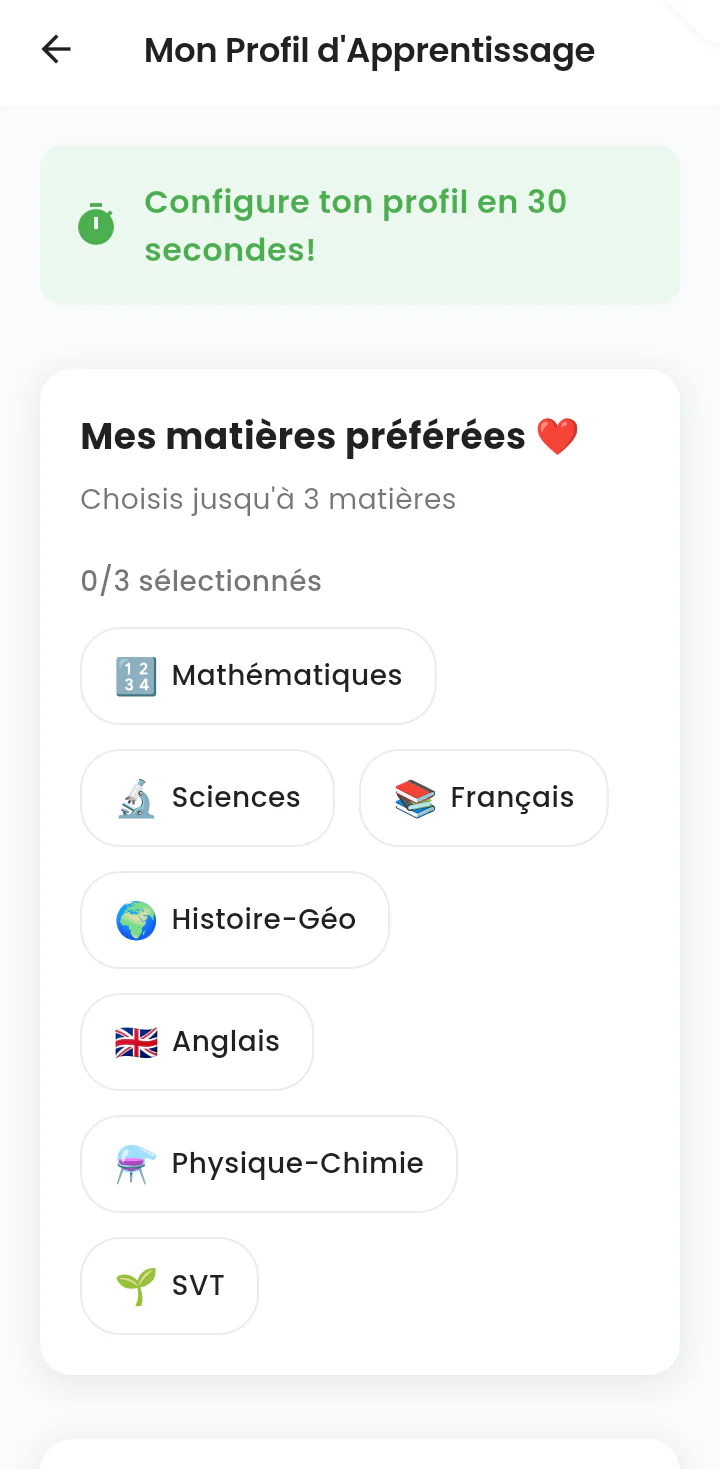
Favourite-subject selection screen, with seven subjects and a selection counter.

8.3 — My learning profile: favourite subjects

A deliberately short set-up, announced as taking 30 seconds.

Available features

  • A selection of up to three favourite subjects
  • Seven subjects offered: mathematics, science, French, history and geography, English, physics and chemistry, biology
  • A selection counter (0 / 3)

What this changes

Immediate personalisation, with no long questionnaire and no compulsory placement test.

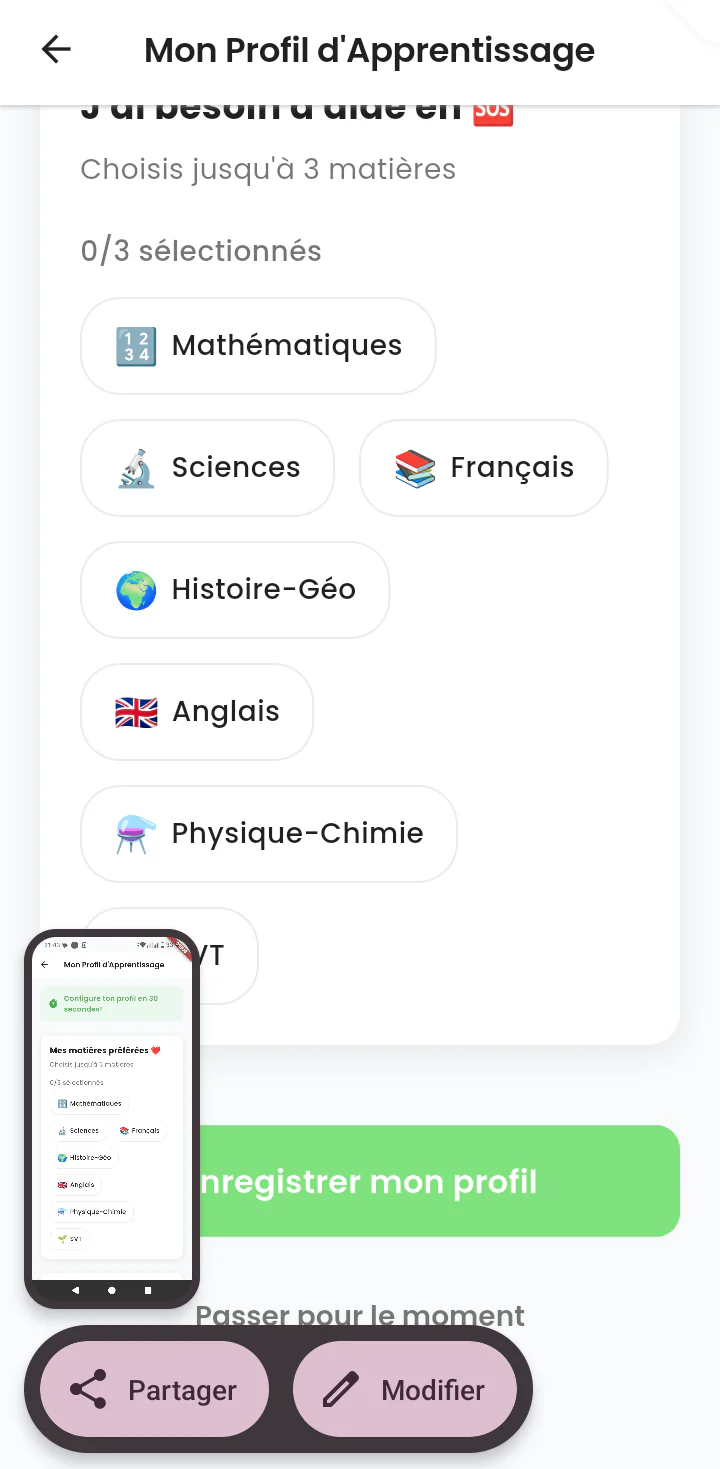
Screen for choosing the subjects where the student wants help, with the option to skip the step.

8.4 — My learning profile: where I need help

The second part: the subjects in which the student feels they are struggling.

Available features

  • A selection of up to three subjects where the student is asking for help
  • Saving the profile
  • The option to postpone: « Passer pour le moment » (skip for now)

What this changes

These two answers steer the recommendations and the AI tutor. They remain optional: the student is never blocked by this step.

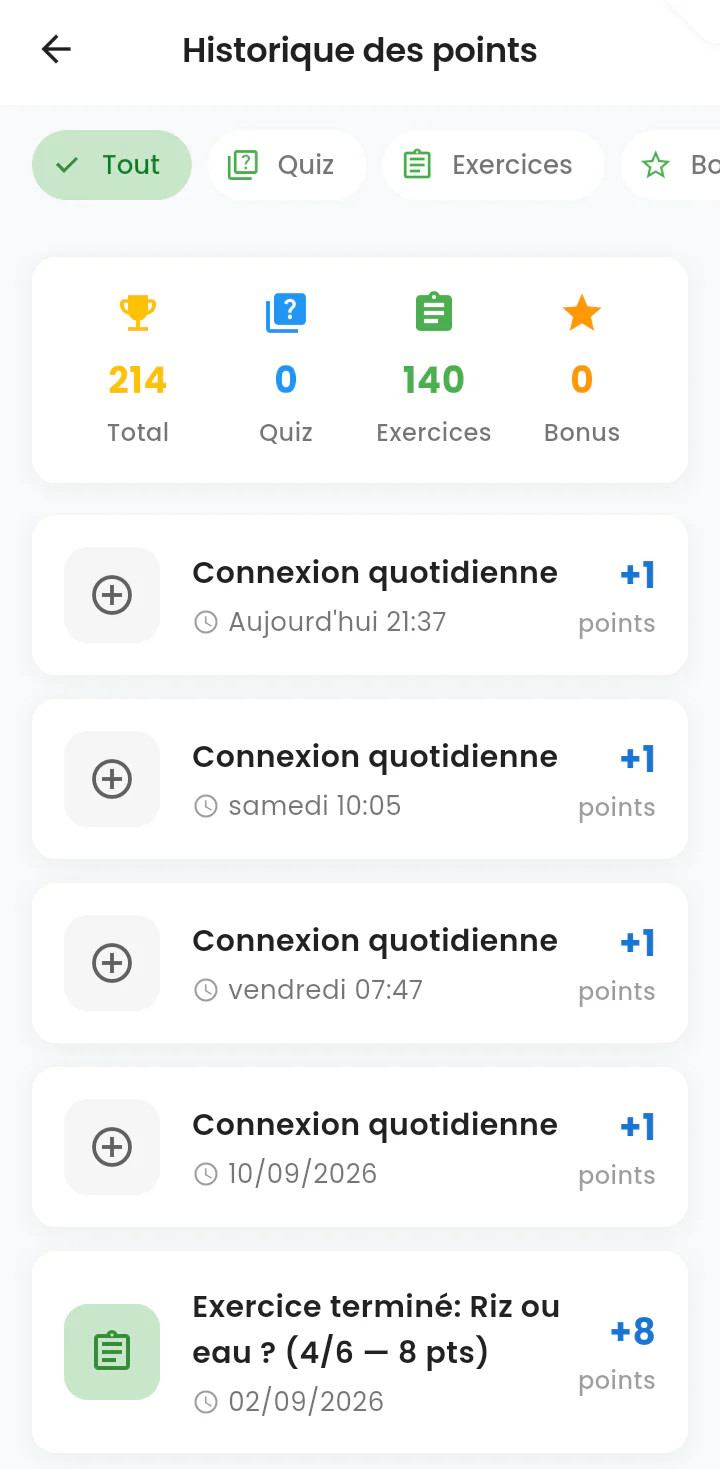
Points history: filters, a breakdown by source and a dated log of gains.

8.5 — The points history

The detail of every point earned, dated and justified.

Available features

  • Filters: all, quizzes, exercises, bonuses
  • A breakdown of points by source (214 in total, of which 140 from exercises)
  • A dated log of every gain, including the daily sign-in (+1 point)
  • Detailed scores for completed exercises (« Riz ou eau ? — 4/6 — 8 points », rice or water, 4 out of 6, 8 points)

What this changes

Complete transparency: the student can check where every point came from. Nothing is awarded opaquely.

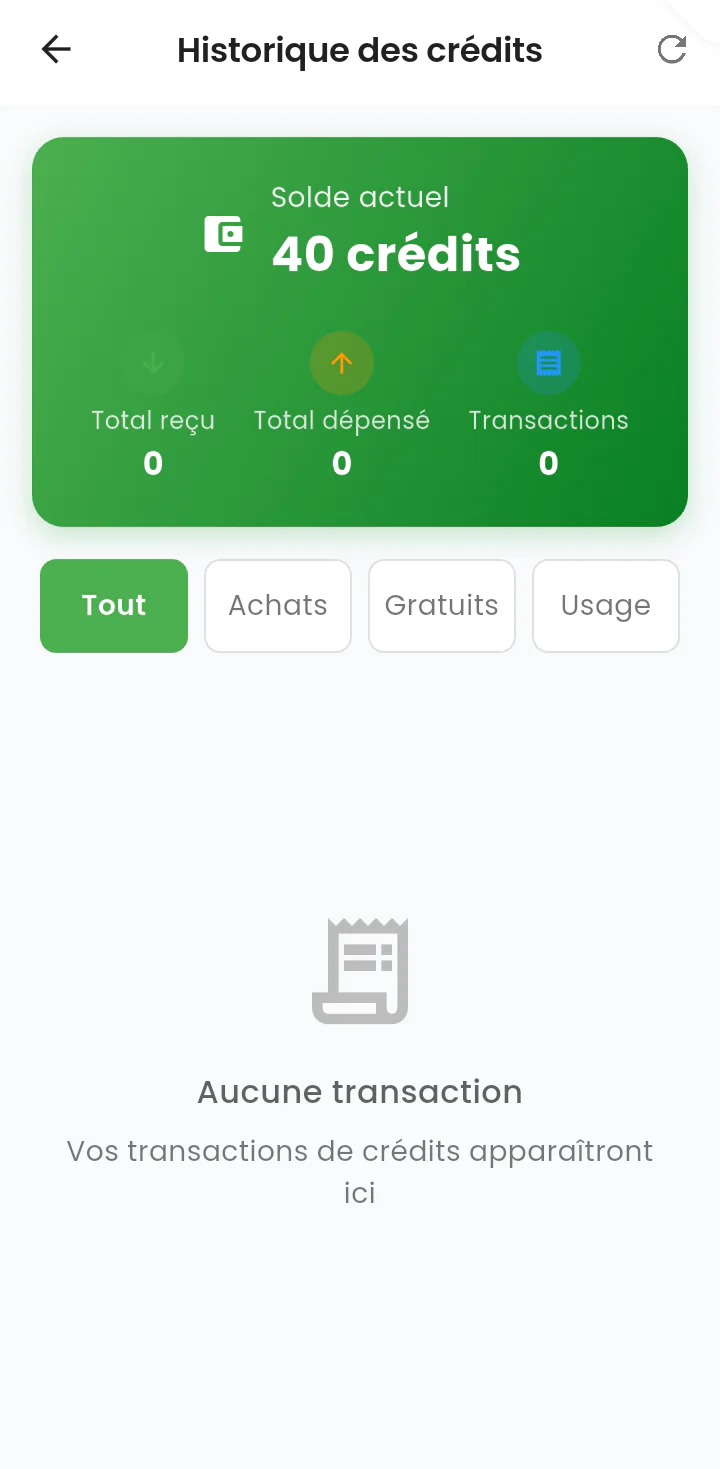
Credit wallet statement: balance, totals, filters and an empty-history message.

8.6 — The credits history

The credit wallet statement, here still free of any transaction.

Available features

  • The current balance shown prominently
  • Totals received and spent, and the number of transactions
  • Filters: all, free credits, usage
  • An explicit message when no transaction exists yet
  • Manual refresh of the statement

What this changes

The same level of traceability applied to points is applied to whatever has monetary value.

Step 9 4 screens

Family, school and the student's rights

Every link to a parent or to a class is confirmed by the student, and data rights are exercised directly from the app.

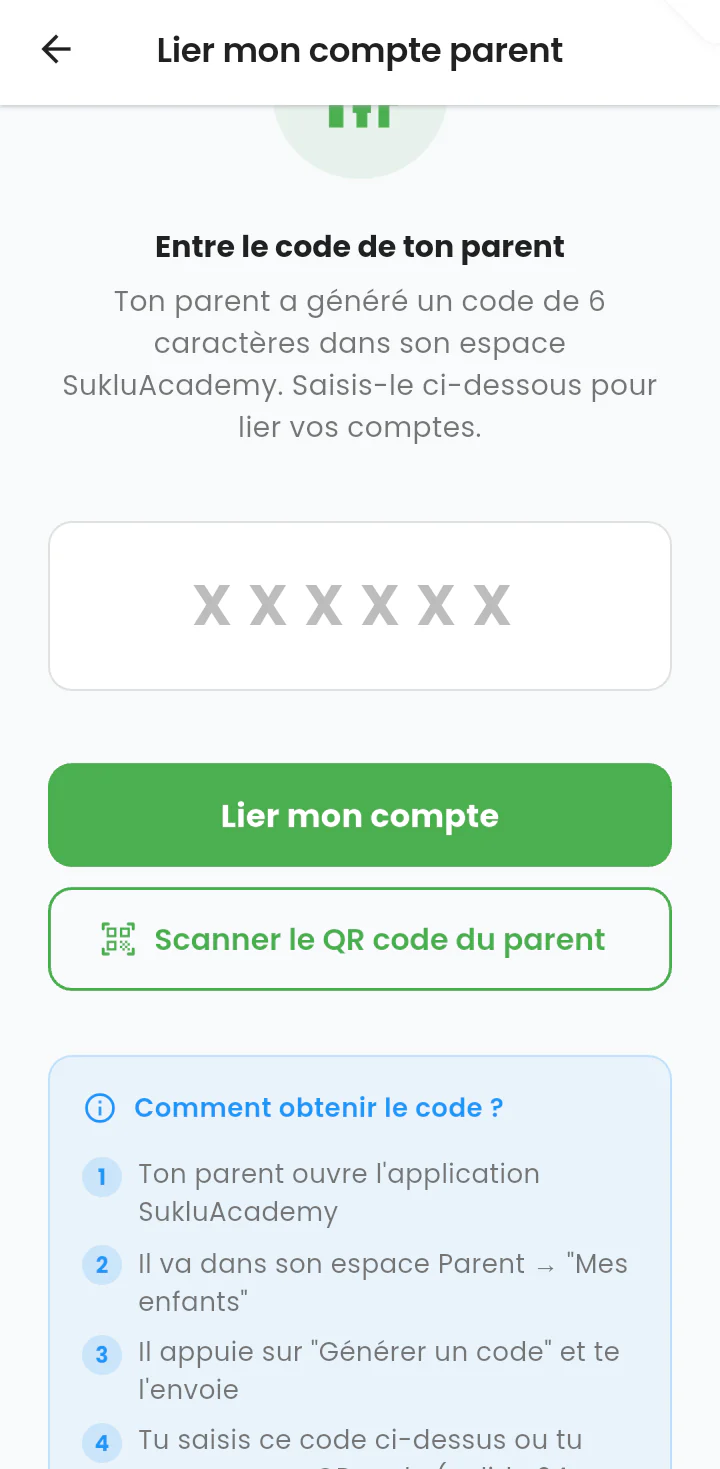
Parent-linking screen: a six-character code field, QR code scanning and a step-by-step guide.

9.1 — Linking a parent's account

The student links their account to their parent's, using a code the parent gives them.

Available features

  • Entry of a six-character code generated by the parent
  • Or scanning the QR code shown on the parent's phone
  • A four-step guide, for the parent's side as well as the child's

What this changes

The link is offered by the parent and then confirmed by the child. No adult can attach themselves to a student account without an action from that student.

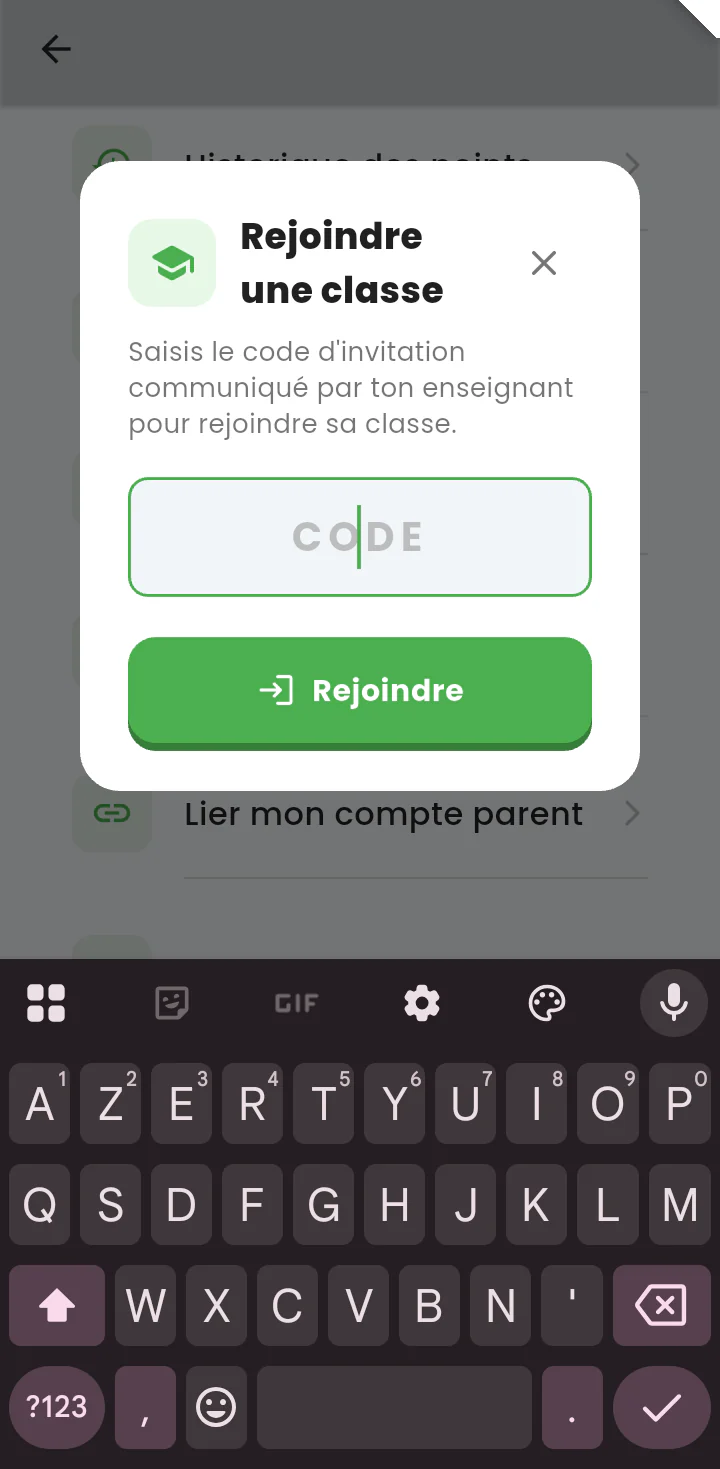
Join-a-class screen: a field for entering the teacher's invitation code.

9.2 — Joining the teacher's class

The student enters the invitation code given by their teacher in order to join the class.

Available features

  • Entry of an invitation code provided by the teacher
  • Immediate attachment to the class

What this changes

It is this attachment that allows the teacher to assign exercises, which then appear on the student's home screen (see 2.1).

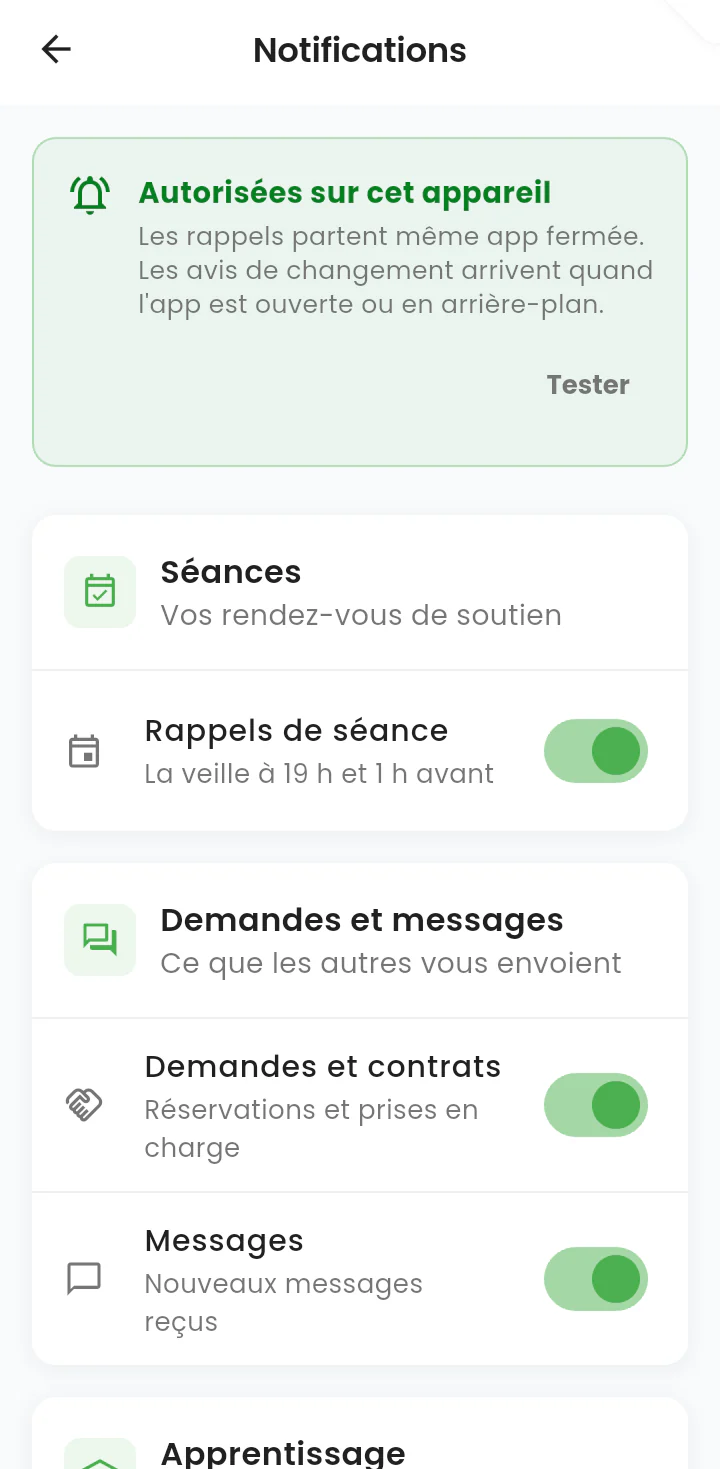
Notification settings: permission status and per-category switches.

9.3 — Notifications

Fine-grained control over what the app is allowed to send.

Available features

  • The permission status on the device, explained in plain language, with a « Tester » (test) button
  • Session reminders, with the timing announced: the day before at 7 p.m. and 1 hour ahead
  • Requests and contracts: bookings and assignments
  • Messages received
  • Notifications related to learning
  • Each category can be switched on or off separately

What this changes

The student and their family stay in control, category by category, with sending times announced in advance.

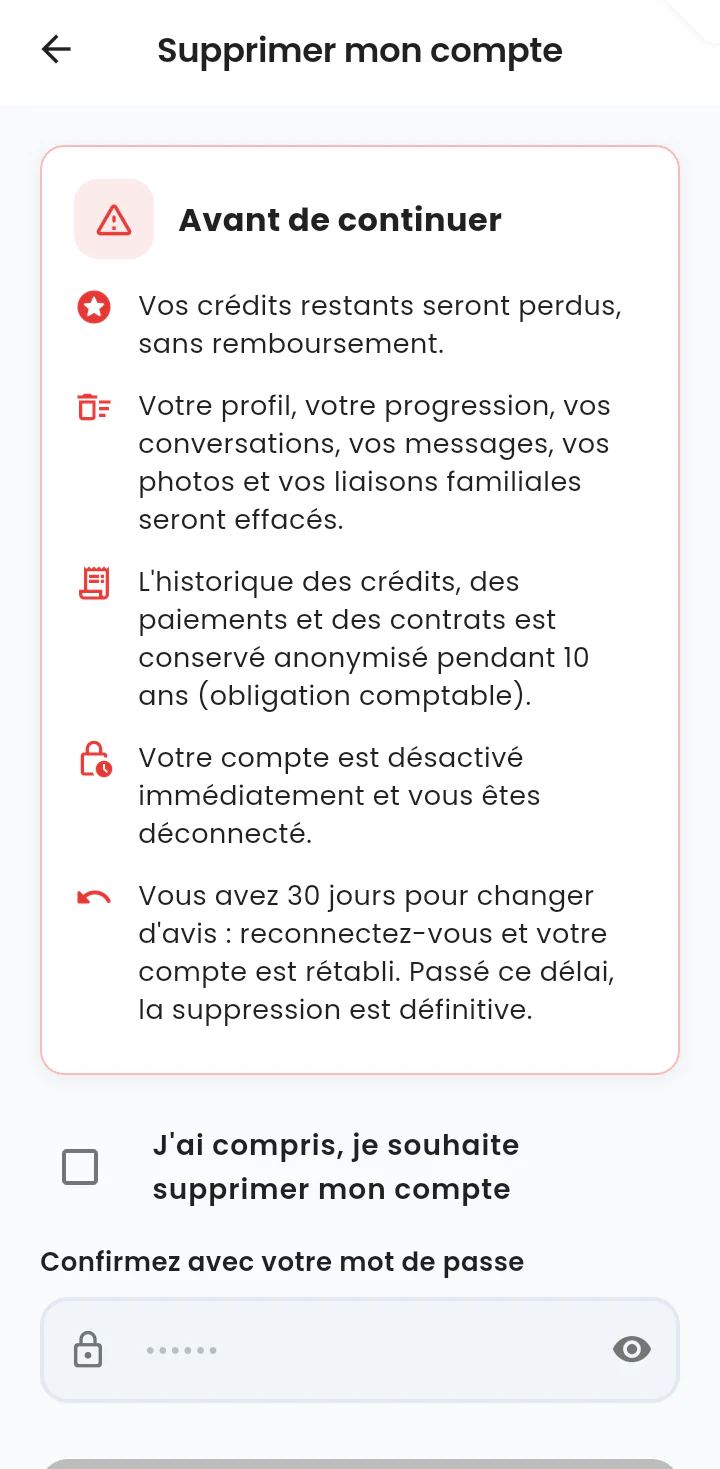
Account deletion screen: the list of consequences, a confirmation checkbox and a password field.

9.4 — Deleting the account

Before any deletion, the app sets out precisely and in plain language what is about to happen.

Available features

  • Advance notice: remaining credits are lost, with no refund
  • Erasure of the profile, progress, conversations, messages, photos and family links
  • Anonymised retention of the credit, payment and contract history for ten years, as required by accounting law
  • Immediate deactivation of the account and sign-out
  • A thirty-day cooling-off period: simply signing in again restores the account
  • Double confirmation: a checkbox, then the password

What this changes

The right to erasure is exercised from within the app, with no request to any department. Its consequences and its limits are stated before the action, not after.