Get started in three steps
When you first sign in, the "Pour démarrer" block on the home screen only shows the steps left to do. A completed step disappears.
- Complete your profile: photo, short bio, subjects taught, levels covered, lesson format (at home, online or both) and area.
- Get your account verified: you upload an identity document (national ID card, passport or residence card), a selfie and, if you wish, your diplomas and certificates. Once the documents are approved, your profile shows the matching badges.
- Invite a student: the app gives you an invitation code to share with your students. As soon as one student is linked, the block disappears.
Your students
The "Élèves" tab gathers the students linked to your account, filterable by level and subject. A student's file shows their activity and lets you act directly: assign exercises, look for what they should work on, or prepare a report for their parents. The home screen shows at a glance how many students you have, who is struggling and which assignments are in progress.
Spot students who are struggling
The "Élèves en difficulté" page helps you differentiate your teaching: it highlights the students who need support, level by level, so you can adapt exercises to each of them.
Your schedule, your sessions
You organise your own sessions. In "Planning", "Ajouter un créneau" lets you create a one-off lesson or a slot that repeats every week, attach one or more students to it, then edit or delete it. The calendar on the home screen shows your week or month, and a reminder alerts you before each session.
The app does not handle booking requests from families, penalties or contracts: how you organise your lessons stays between you and the families.
Assign exercises and follow the results
An assignment takes a few steps: you choose the students, the exercises and the due date. The assignment tracking then shows the completion rate, the average score and, student by student, who has not started, who is in progress, late or done. On the student side, assigned exercises appear in a dedicated box on the home screen.
Keep parents informed
- Reports: you write a report on a student, save it as a draft, then send it to the parent. It arrives in your conversation with them and stays archived there.
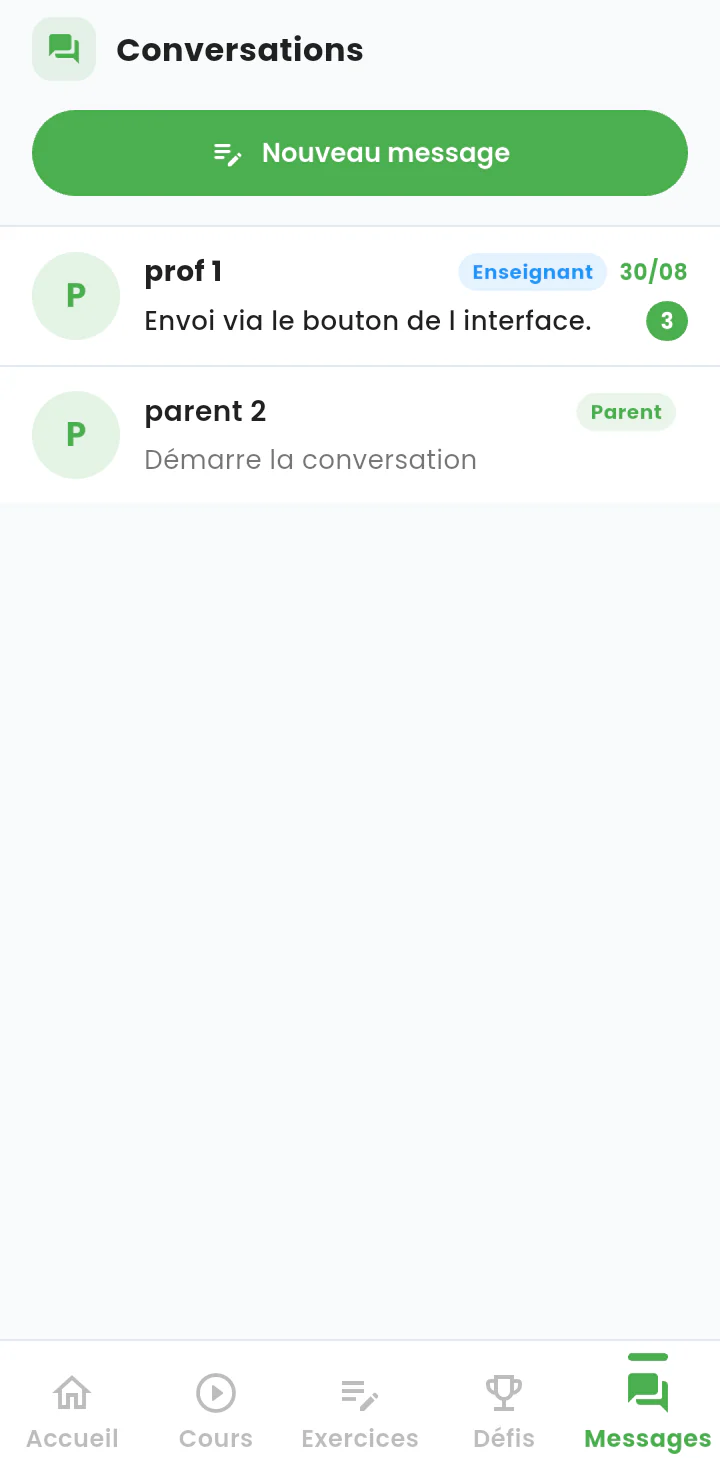
- Messages: you talk with your students and their parents. "Diffusion" sends the same message to all the parents of a level; each receives it individually and replies stay private.
Suklu AI, your assistant
From the home screen, "Demander à Suklu AI" helps you prepare your work: which student needs help, which exercise to give, how to word a report. Suklu AI features are labelled as such in the app, and the action always asks for your confirmation before it runs. You review and adjust before sending anything to a family.
Your data
Verification documents are only used to check your identity and diplomas. You can delete your account from your profile; the consequences are shown before you confirm. See the privacy policy and the terms of use.